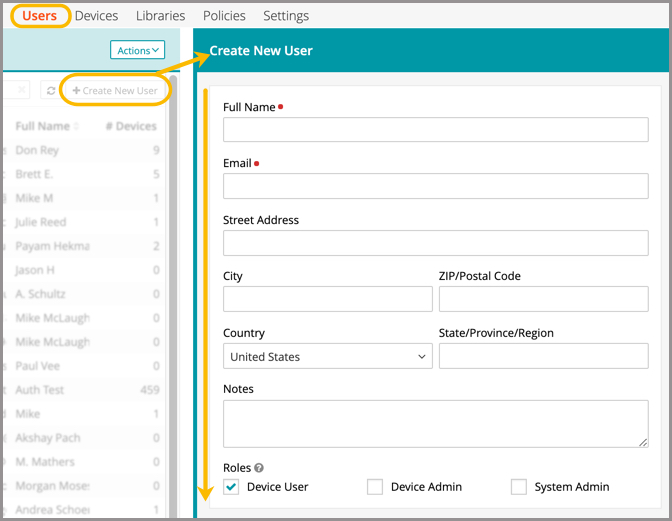
Create user accounts
Related Video: The Basics: Create, Edit, and Delete
- Select the Users tab in top navigation.
- To create a new user:
- In the right panel, enter device user details into available fields.
- Click Create New User.
- Select the role or roles you would like to apply to the device user.
- Click Create New User.
- On the Users tab, select a user from the list.
- To delete a user, in the right panel, click Delete User, and then click Confirm.
NOTE: You can select and delete multiple users, as needed. Deleting users makes all of their linked devices to be unassigned. This removes all of the KACE Cloud managed apps, profiles and configurations from the linked devices. However, if any passcodes previously existed on those devices, they remain intact.
- To edit a user's account, in the right panel, click Edit User.
- In the right panel, click Edit User.
- Make edits in the available fields and click Save.
- To review user devices:
- In the right panel, click View Devices.
A full list of the user's devices appears.
- Select a device to see details and all available actions.
- In the right panel, click View Devices.
- To delete a user, in the right panel, click Delete User, and then click Confirm.