EXE, ZIP, MSI, DMG, and PKG apps: Gathering app details
KACE Cloud allows administrators to quickly add Windows (EXE, MSI, and ZIP) and macOS (DMG and PKG) apps to the Apps Library. These apps require some additional information that is needed during installation. For that reason, the recommended approach is to first install a desired app on a test device, obtain the necessary information, and then add the app to KACE Cloud.
- Start by installing the app locally and obtaining applicable Inventory Identifiers. This information is required to ensure these types of apps are installed by the KACE Cloud Agent during inventory.
- Additional information is needed when adding Windows apps, such as Return Codes and Command Line Parameters for Removal. For ZIP files, you must also specify the Executable Path.
- If you are adding custom-hosted apps, you must obtain the file's Checksum so that KACE Cloud can ensure the file is valid.
- If you are uploading a macOS app that is specific to a hardware architecture, ensure that the app name or description reflects that architecture. For example, use MyApp Intel or MyApp Apple Silicon. This naming convention helps you create policies that include apps and target devices based on their architecture.
Inventory Identifiers
You can choose one of the following inventory identifiers when adding an EXE, ZIP, MSI, DMG, or PKG app to the Apps Library:

Name and Version
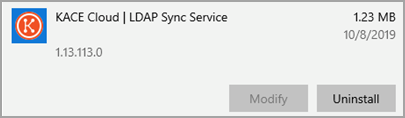
Windows apps: Look for the app's name and version the Windows Settings app, under Apps & features. The Name value that you specify while adding or updating a Windows EXE or ZIP app must be the exact same value as the one appearing in this section. In the following example, the app's name is KACE Cloud | LDAP Sync Service and the version is 1.13.113.0.
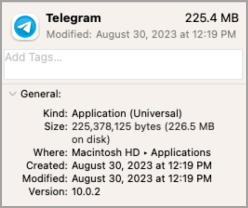
macOS apps: You can find the app's name and version in Finder, under Applications, when you select the app.
In some rare cases, the macOS app version may not be available. For example:
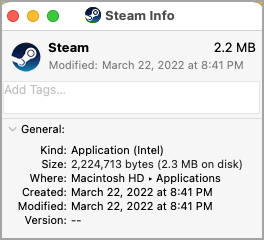
To obtain the version number, you can run a command that uses the following syntax:
defaults read /Applications/<app_name>.app/Contents/Info.plist CFBundleVersion
For example:

Verification ID
Windows apps: The Windows Registry key or the Uninstall key is created during app installation on the test machine. This can be valuable if the app gets automatically updated and changes the version number. For that reason, this is the recommended identifier.
For example: HKEY_LOCAL_MACHINE\Software\Wow6432Node\Microsoft\Windows\CurrentVersion\Uninstall\AnyDesk
If the app is installed on a device that has had inventory run, you can locate the key in two ways:
-
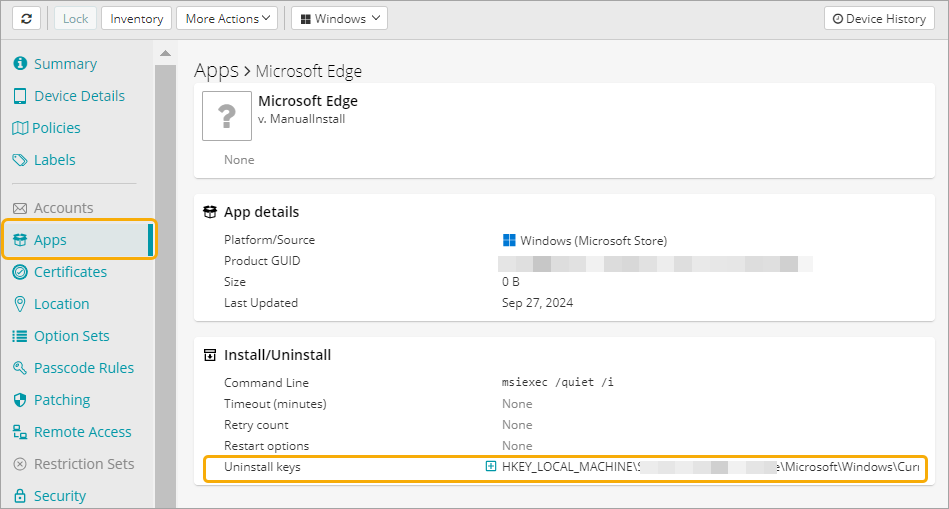
From the App details in the Device view:
- Go to the Devices tab.
- Select a device to display its details.
- In the right pane, click Apps, and select the app from the list.
- Click View Details to display the app details.
- Locate the Uninstall key in the Install/Uninstall section.
-
From the device by checking the .inv file at C:\ProgramData\Quest\KACECloud\cloudinventory\software.inv. In the file, search for the app, and find the desired value in the "regKey" field.
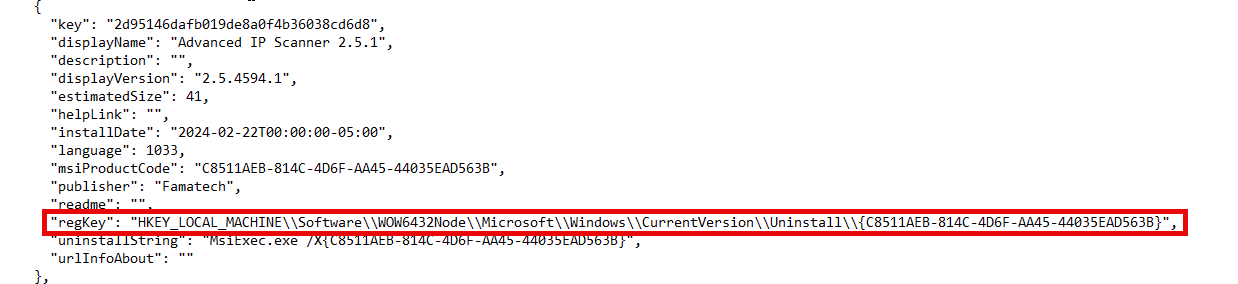
If unable to find the .inv file at this location, go to the Devices menu and click the Inventory tab. It triggers the generation of the .inv file.
macOS apps: macOS apps' bundle IDs uniquely identify the app in Apple's collection of apps. You can obtain the bundle ID of an app by running the following command:
defaults read /Applications/<app_name>.app/Contents/Info.plist CFBundleIdentifier
Where app_name is the installed app.
Do not verify this App
Flagging the app as not verifiable prevents the app from being uninstalled by KACE Cloud. If the end user removes the app from the device, this is not reflected in the device's app inventory in KACE Cloud.
Icon
The icon image associated with the app file is for use within KACE Cloud only. It does not override the app icon on the device itself.
Windows apps only: Return Codes
In most cases, if an app installer is successful, it returns a zero ‘0’ result if it succeeds. However, some apps have other values which indicate success. If KACE Cloud consider other values as successful they can be entered during app file upload.
On the test machine, you can obtain the exit value after the app installation by examining the errorlevel variable. For example:

Windows apps only: Command Line Parameters for Removal
Silent installation and app removal parameters are required to enable automated installations and app removals that do not require user input. Failing to provide valid silent parameters can cause the associated process to create an input window that never gets a response, causing the process timeout.
Uninstall strings
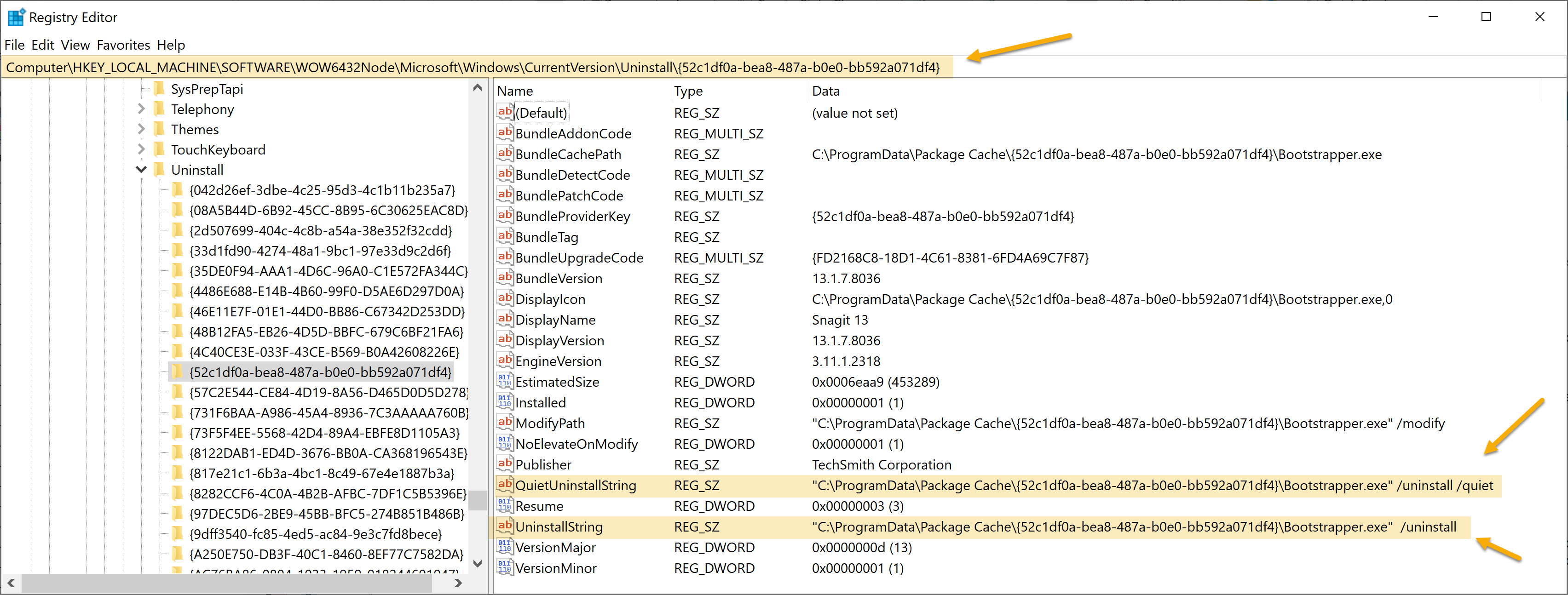
Each app has a sub-key under their Uninstall key in its Windows registry program location. This sub-key can be found in the following locations of the Windows registry:
- 32-bit apps: Computer\HKEY_LOCAL_MACHINE\SOFTWARE\Microsoft\Windows\CurrentVersion\Uninstall\<app_sub_key>
- 64-bit apps: Computer\HKEY_LOCAL_MACHINE\SOFTWARE\WOW6432Node\Microsoft\Windows\CurrentVersion\Uninstall\<app_sub_key>
Well-designed apps typically support silent installation by creating a registry entry QuietUninstallString. If the app installer does not create that registry value, and no silent uninstall parameters are provided for the app in the library, app removal may fail. If it does not exist. KACE Cloud will instead use the value provided in the UninstallString registry entry. But in that case the uninstall process may create a confirmation window which would never get a response, causing the app removal to time out.
Windows ZIP files only: Executable Path
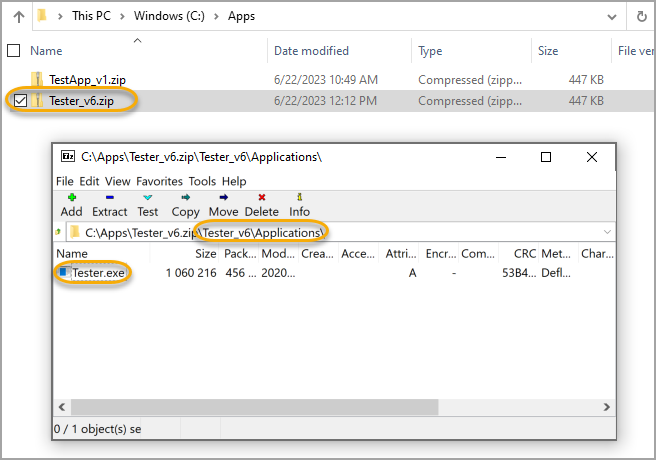
If the installer is deployed as a ZIP file, the test machine can be used to determine the path to the file that should be run, within that ZIP file folder structure.
For example, when the installation file (EXE) is located in a sub-directory of the ZIP file, you must provide the full path to the file, along with the file name:
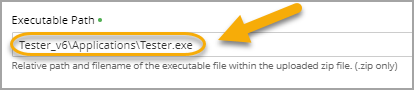
Similarly, when the installation file is the only file in the ZIP file, you can simply specify the file name:
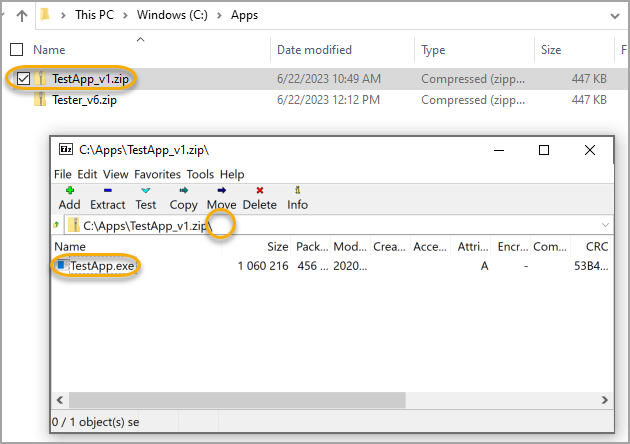
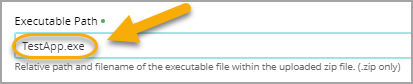
For installers that are just an EXE file (the standard case), the Executable Path field in KACE Cloud should contain is the name of the uploaded file.
Custom-hosted apps: Checksum
When you point to a file hosted on a network location, you must provide the URL to the file, along with the file's checksum. To generate the checksum, download the file to a local device and run one of the following commands:
- Windows: certUtil -hashfile <file_name> SHA256
- macOS: shasum -a 256 <file_name>
Where file_name is the full name of the EXE, ZIP, MSI, DMG, or PKG file.