Configure Windows Firewall settings in the Library
The Windows Defender Firewall allows administrators to control network traffic on your managed Windows devices. KACE Cloud provides access to the Windows Firewall settings, enabling administrators to optimize and secure network traffic on target devices. You can create and manage your organization's Windows Firewall settings in the Library. For example, you can allow or block certain apps from accessing the network through the Windows Defender Firewall.
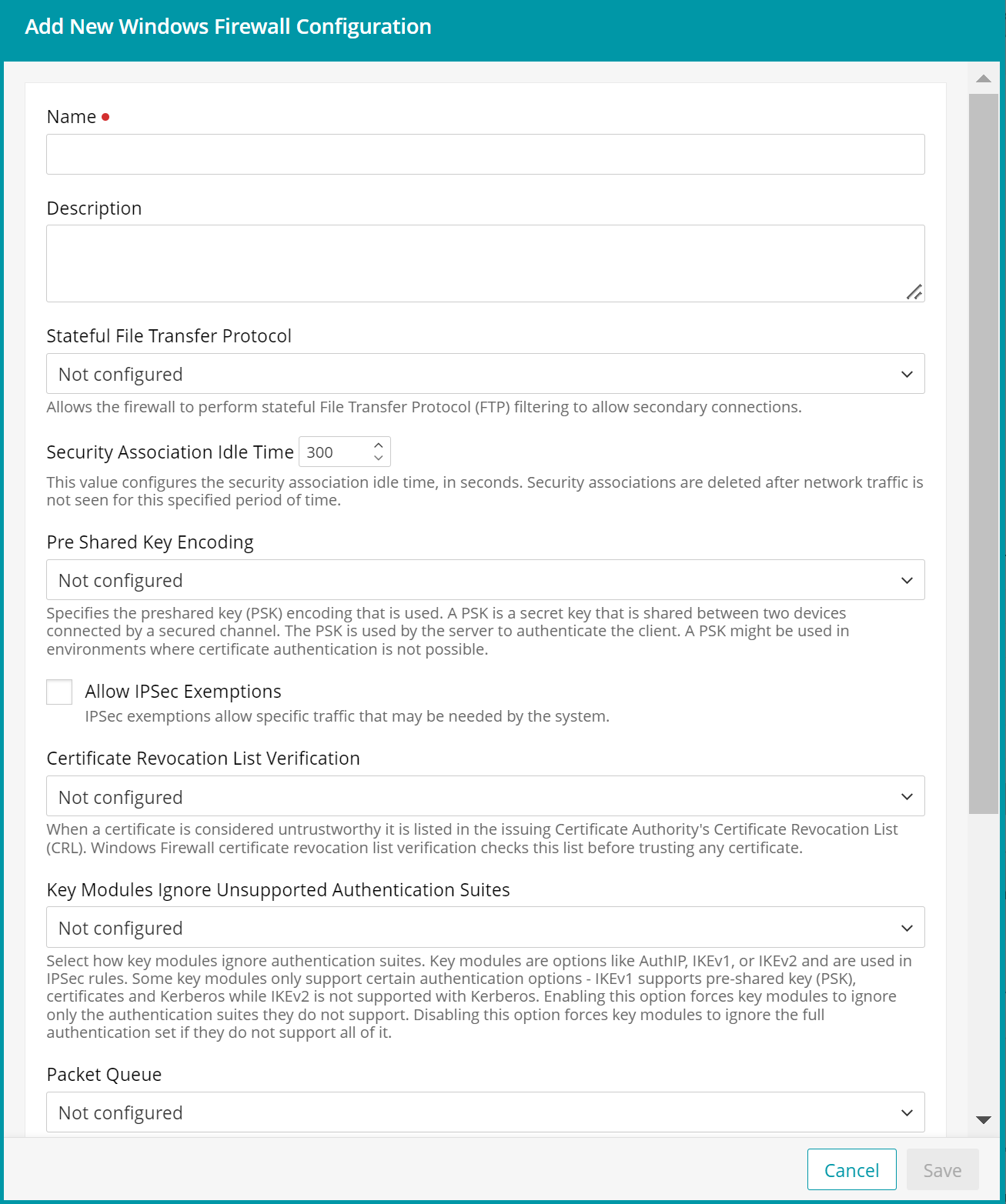
To create or edit Windows Firewall settings:
- Select the Libraries tab in top navigation.
- Click Security.
- Complete one of the following steps:
- To create a new Windows Firewall configuration, choose Add New > Windows Firewall.
- To edit an existing Windows Firewall configuration, select it in the list, and in the right panel, click Edit.
- In the Windows Firewall Configuration view that appears in the right panel, provide the following information:
Option Description Name The name of the Windows Firewall configuration. Description A short description of the Windows Firewall configuration. Stateful File Transfer Protocol When configured, this setting allows the firewall to perform Stateful File Transfer Protocol (SFTP) filtering to allow secondary connections. Some users do not need to enable SFTP for security reasons. Security Association Idle Time The security association idle time, in seconds. Security associations are deleted after network traffic is not seen for this specified period of time. Security associations are the connections between devices or end points and if they are sitting idle, this can waste resources. Pre Shared Key Encoding The pre-shared key (PSK) encoding in use. A PSK is a secret key that is shared between two devices connected by a secured channel. The PSK is used by the server to authenticate the client. A PSK can be used in environments where certificate authentication is not possible.
For information on how this setting maps to the value appearing in the Windows Event Viewer on the target device, see Understanding Windows Firewall Configuration Settings in the Event Viewer.
Allow IPSec Exemptions When allowed, Internet Protocol Security (IPSec) is used to transfer data securely across the Internet. This setting controls whether certain protocols are exempt from IPSec. This enables specific traffic that may be needed by the system.
- Allow Neighbor Discovery IPSec Exemptions: Neighbor Discovery
(ND) is part of IPv6. ND is insecure and
susceptible to malicious interference. When this setting is enabled, managed devices use ND to perform the following actions:
- discover each other's presence on the same network,
- determine each other's link-layer addresses,
- perform duplicate address detection,
- automatically configure the default gateway,
- discover the subnet address on which they are connected, and
- maintain reachability information about the paths.
- Allow ICMP IPSec Exemptions: When this setting is enabled, managed devices use the Internet Control Message Protocol (ICMP) to send error messages and operational information indicating success or failure when communicating with another address. For example, an error indicates that a requested service is not available or that a host or router cannot be reached. Security risks of enabling ICMP include network discovery attacks, covert communication channels, and network traffic redirection.
- Allow Router Discovery IPSec: Router Discovery is part of IPv6 and is a subset of Neighbour Discovery. Enabling this setting allows devices to find routers on a network.
- Allow DHCP IPSec Exemptions: Enables both IPv4 and IPv6 DHCP network traffic.
For information on how this setting maps to the value appearing in the Windows Event Viewer on the target device, see Understanding Windows Firewall Configuration Settings in the Event Viewer.
Certificate Revocation List Verification When a certificate is considered untrustworthy, it is listed in the issuing Certificate Authority's Certificate Revocation List (CRL). When this setting is enabled, Windows Firewall certificate revocation list verification checks this list before trusting any certificate. The default setting is to disable CRL checking.
For information on how this setting maps to the value appearing in the Windows Event Viewer on the target device, see Understanding Windows Firewall Configuration Settings in the Event Viewer.
Key Modules Ignore Unsupported Authentication Suites When this setting is enabled, it specifies how key modules ignore authentication suites. Key modules are options like AuthIP, IKEv1, or IKEv2, and they are used in IPSec rules. Some key modules only support certain authentication options: IKEv1 supports pre-shared key (PSK), certificates and Kerberos, while IKEv2 is not supported with Kerberos. Enabling this option forces key modules to ignore only the authentication suites they do not support. Disabling this option forces key modules to ignore the full authentication set if they do not support all of it. Packet Queue Indicates how packet queuing works on the device which allows scaling. This value specifies how scaling for the software on the receive side is enabled for both the encrypted receive (inbound) and clear text forward path (outbound) for the IPsec tunnel gateway scenario. Using this option ensures that packet order is preserved. This setting is disabled by default. Domain Network Firewall
Private Network Firewall
Public Network Firewall
Windows Firewall has three network types: Domain, Public and Private networks. The network type is selected when a new network adapter is created and can be changed after its creation. The default network type is Public.
The Domain network type is only available for devices joined and connected to an on-premise domain. For example, when a target device is connected to an MS Azure domain, the Domain network type is not available.
Each of these network types comes with these options:
- Network Firewall: Indicates whether the Windows Firewall is enabled for the network type. If this value is not configured, the default is to enable it.
- Block Stealth Mode: Stops malicious users from discovering information about devices. Stealth mode is enabled by default.
Respond To Unsolicited IPSec Traffic Under Stealth Mode: This setting requires stealth mode to be enabled on the device. If stealth mode and this option are enabled, stealth mode rules must not prevent the host computer from responding to unsolicited network traffic if that traffic is secured by IPsec. The default value is to enable this option.
- Enable Shielded Mode: Isolates a device from the network. This option is disabled by default.
- Disable Unicast Responses To Multicast Broadcasts: Helps minimize the risk of an attacker using broadcast or multi-cast traffic to deliver malicious payloads. The default setting is to allow responses.
- Disable Inbound Notifications: Prevents user notifications when an application is blocked by an inbound rule. The default setting is to allow user notifications.
- Block Outbound Connections: Blocks all outbound connections that do not match an outbound rule. The default setting is to allow connections.
- Block Inbound Connections: Blocks all inbound connections that do not match an inbound rule. The default setting is to block connections.
- Ignore Local Authorized Application Rules: Ignores any application firewall rules that are created on the device. The default setting is to use the local rules.
- Ignore Local Global Port Rules: Ignores any global port firewall rules that are created on the device. The default setting is to use the local rules.
- Ignore All Local Rules: Ignores any firewall rules that are created on the device. The default setting is to use the local rules.
Ignore All Local IPSec Rules: Ignores any IPSec firewall rules that are created on the device. The default setting is to use the local rules.
- Allow Neighbor Discovery IPSec Exemptions: Neighbor Discovery
(ND) is part of IPv6. ND is insecure and
susceptible to malicious interference. When this setting is enabled, managed devices use ND to perform the following actions:
- In the Windows Firewall Configuration view, click Save.