Customize a Script in Policy
You can customize a script in a policy to meet specific requirements. Customization allows you to edit a default script and publish changes without affecting the original script in the Library. You can add or edit details in the Execution, Input, and Triggers tabs.
|
|
NOTE: Any customization (Execution, Triggers, etc.) made to a script is applicable only to the linked policy. The script in the Scripting Library remains unaffected. |

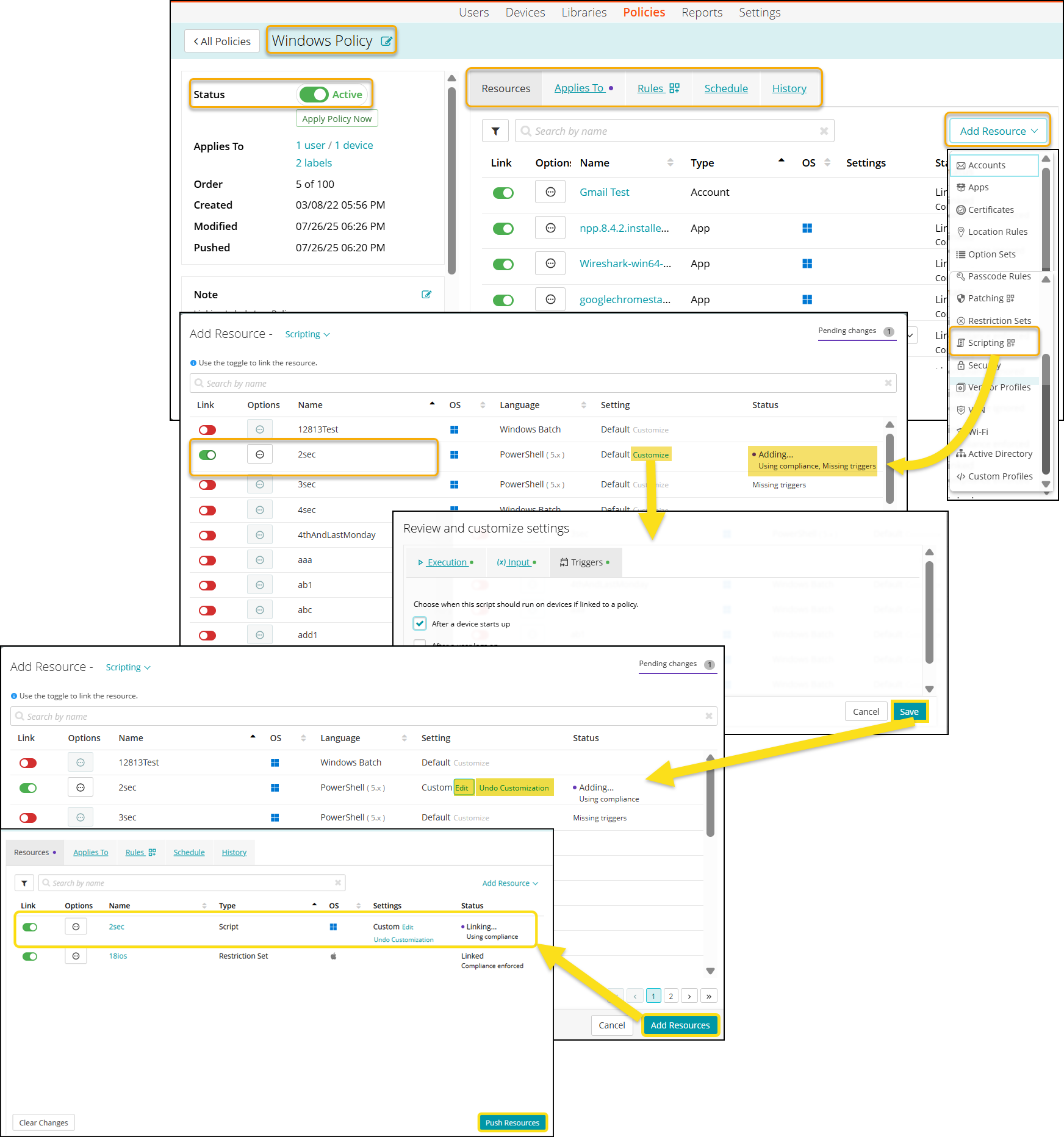
To customize a script,
- Go to Policies in top navigation to open the Policies page.
- Click an individual policy to view the details.
- Click Add Resource, and then Scripting to open the Add Resources dialog with published scripts library.
- Locate the script you want to customize.

NOTE:If the script has no triggers, the status shows Missing triggers.
- Slide the Link toggle to the right to link the script to the policy. The color of the toggle changes to green indicating the script is linked.
The Status shows Adding… Using compliance with a purple dot near it.
Click Customize to open the Review and customize settings dialog.NOTE: The Customize button is enabled automatically after the script is linked to the policy.
- Add or modify details in the Execution, Environment variables, and Triggers tabs.

NOTE: If you miss adding triggers to a script, the script is deployed to device but not executed. The script status displays Missing triggers. It runs only when you add Triggers to it. See the Adding Triggers to a Script topic for more information.
- Click Save.
The system creates a copy of the script. The status changes from Default to Custom, and the Edit and Undo Customization buttons appear near it. - (Optional) Select the following:
- Edit - to make additional changes to the script copy.
- Undo Customization - to revert to the original version. The script returns to its original settings.
- Click Add Resources to attach the script to the policy.
- Select Push Resources to deploy the added script to the target devices or users.
The Status changes to Linked - Compliance enforced, and the purple dot disappears as the changes are confirmed.
Undo Customization
You can revert the changes made to a script.
To revert the changes,
- Go to individual policy>Add resources > Scripting to open the Add Resources dialog and access scripts library.
- Identify a script which you want to revert the changes.
- Click Undo Customization and then Confirm.
The script restores to its original settings.