Import a Script
If you have an exported KACE Cloud script package (.kcscript) file, you can import it into the script library.
To import a script,
- Navigate to Libraries > Scripting.
- On the Scripting page, open the side menu on the Add New button and click Import .kcscript Package to open the Import Script dialog.
- Drag and drop your .kcscript package file into the dialog or click Browse... and select one.
- Click Import.
Wait for the package file to be uploaded. After the upload is complete, it will take some time for the script to be imported. You can wait for the import to finish, or you can close the dialog and it will continue in the background. - Once the script has been imported, select it in the library to view its details. If there were any errors encountered during the import process, they will be shown at the top of the detail pane.
|
|
IMPORTANT: If the original script contained any hidden environment variables, the values will not be included in the .kcscript package. The values will need to be re-entered in the script editor. |

Import Status Filters
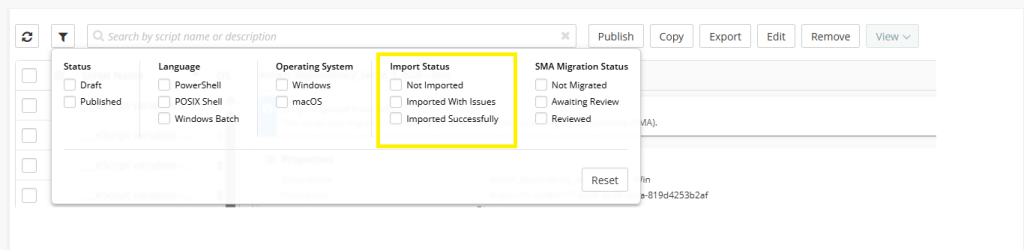
-
Not Imported Shows scripts that were created natively in KACE Cloud.
-
Imported With Issues Shows scripts that were imported but the import process finished with errors (shown at the top of the script detail pane).
-
Imported Successfully Shows scripts that were imported without any errors.