Migrate a Script from KACE Systems Management Appliance (SMA)
If you already have a script configured on a KACE Systems Management Appliance (SMA), you can migrate the script to KACE Cloud using the SMA's Export Resources function.
Online/offline shell scripts are migrated by uploading the script file and dependencies to KACE Cloud. KScripts are migrated by translating the KScript steps into a PowerShell script for Windows or a POSIX Shell (ZSH) script for macOS.
To migrate a SMA script,
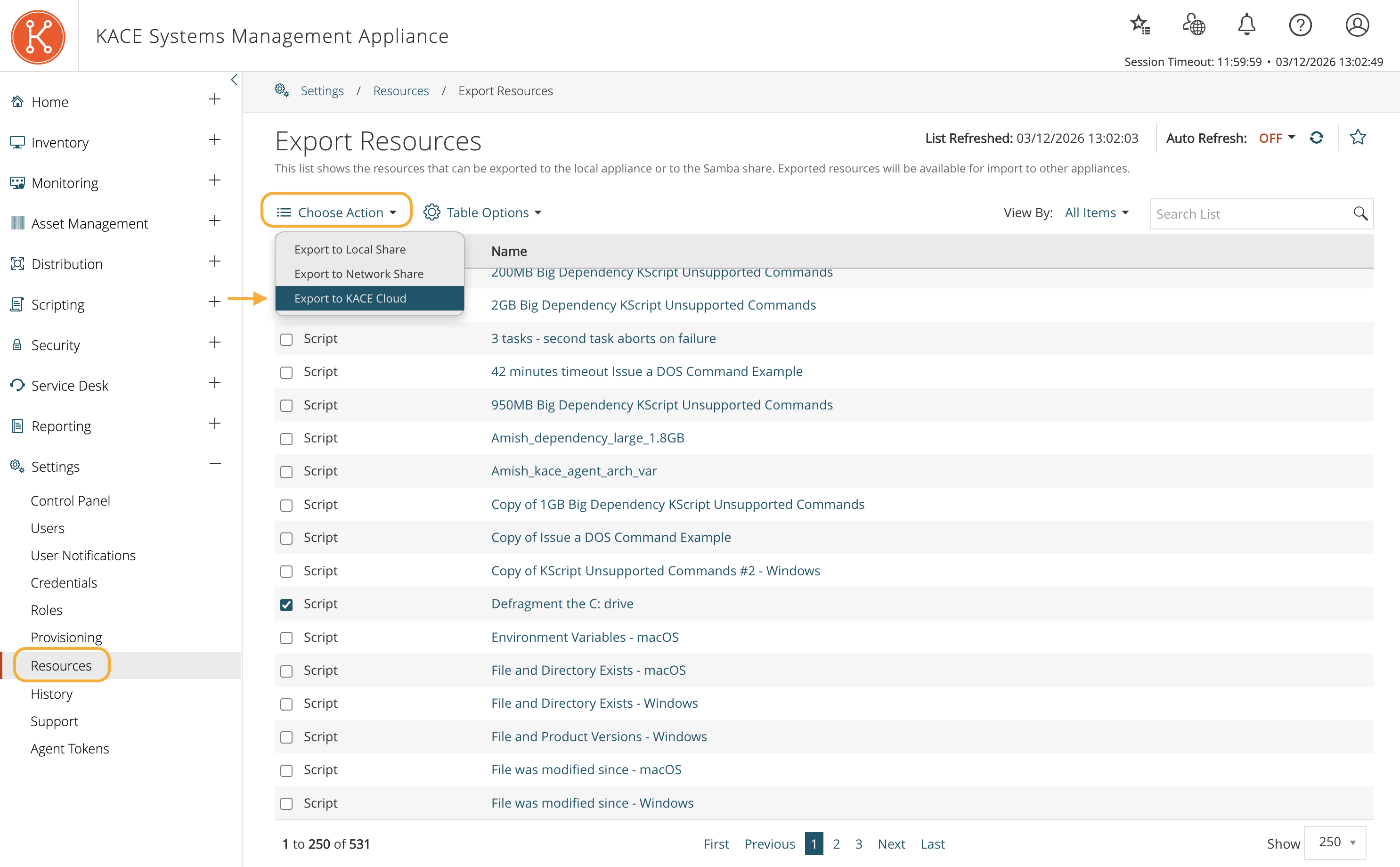
- On the SMA, navigate to Settings > Resources. Select your script in the list, then click Choose Action. In the menu, click Export to KACE Cloud.
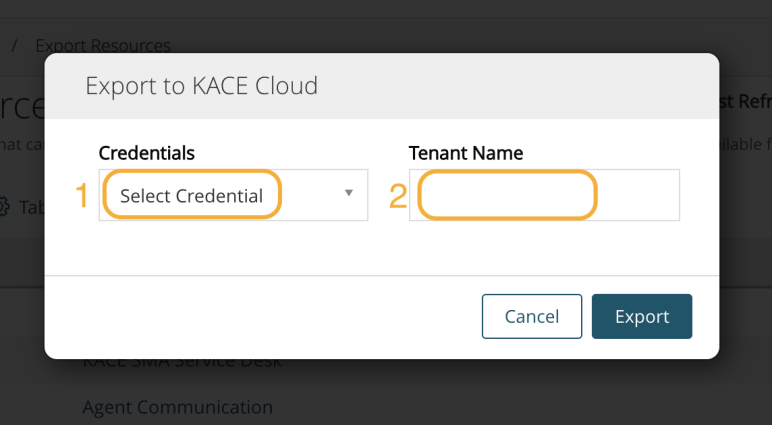
- In the Export to KACE Cloud dialog, you'll need to first select a credential to use to authenticate with KACE Cloud. Then enter your tenant name and click Export to start the migration process.
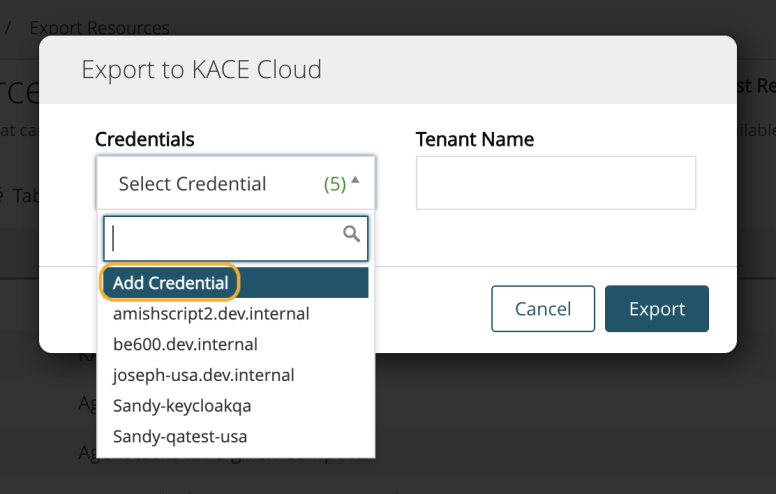
- If you do not have a credential for KACE Cloud, you can add one. Click Select Credential, then Add Credential.
Before you continue, look up your KACE Cloud SMA Secret Key in the KACE Cloud admin portal. Go to Settings > Integrations > KACE SMA (K1000). Then click the copy button next to the Secret Key to copy it to your clipboard. Also, make note of your Tenant Name, which is the first part of your KACE Cloud subdomain.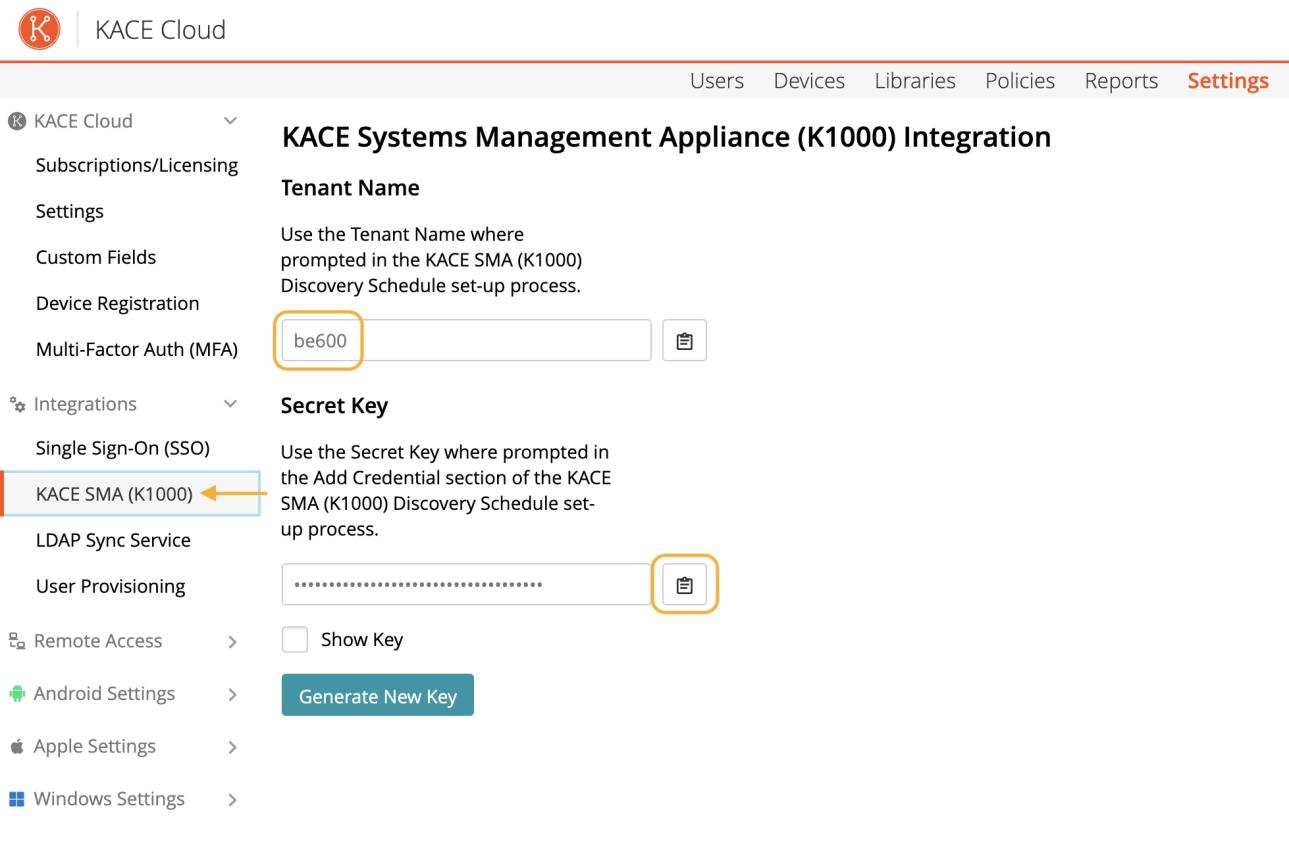
Back on the SMA, type a name for the KACE Cloud credential, then paste your KACE Cloud SMA Secret Key in the Secret field. Click Save to create the credential, then continue in the Export to KACE Cloud dialog by selecting the new credential and entering your Tenant Name before clicking Export to start the script migration process.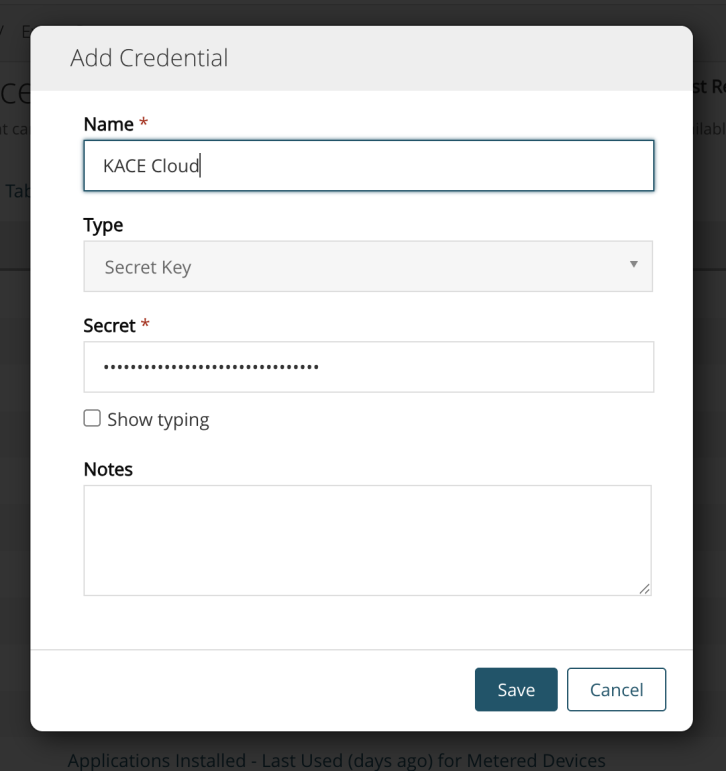
- If you do not have a credential for KACE Cloud, you can add one. Click Select Credential, then Add Credential.
- The dialog will close and you'll be taken to the Resource Sharing Status screen. The script you chose to export will be listed with its initial status of "Processing".
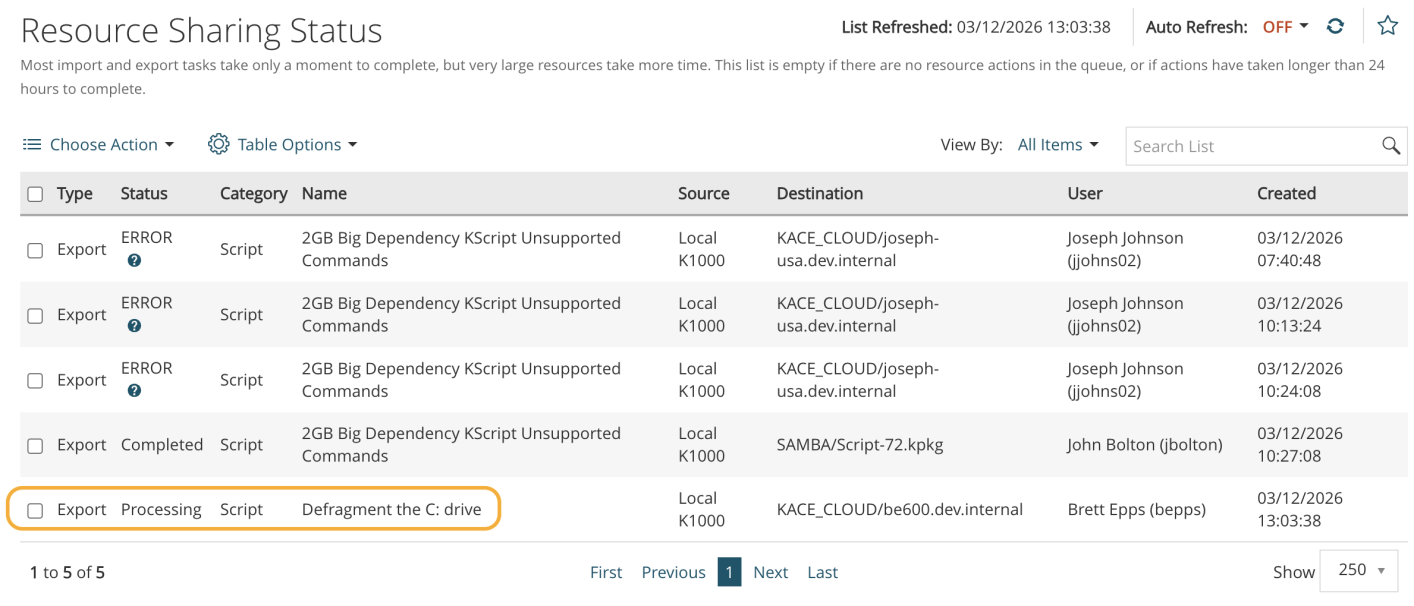
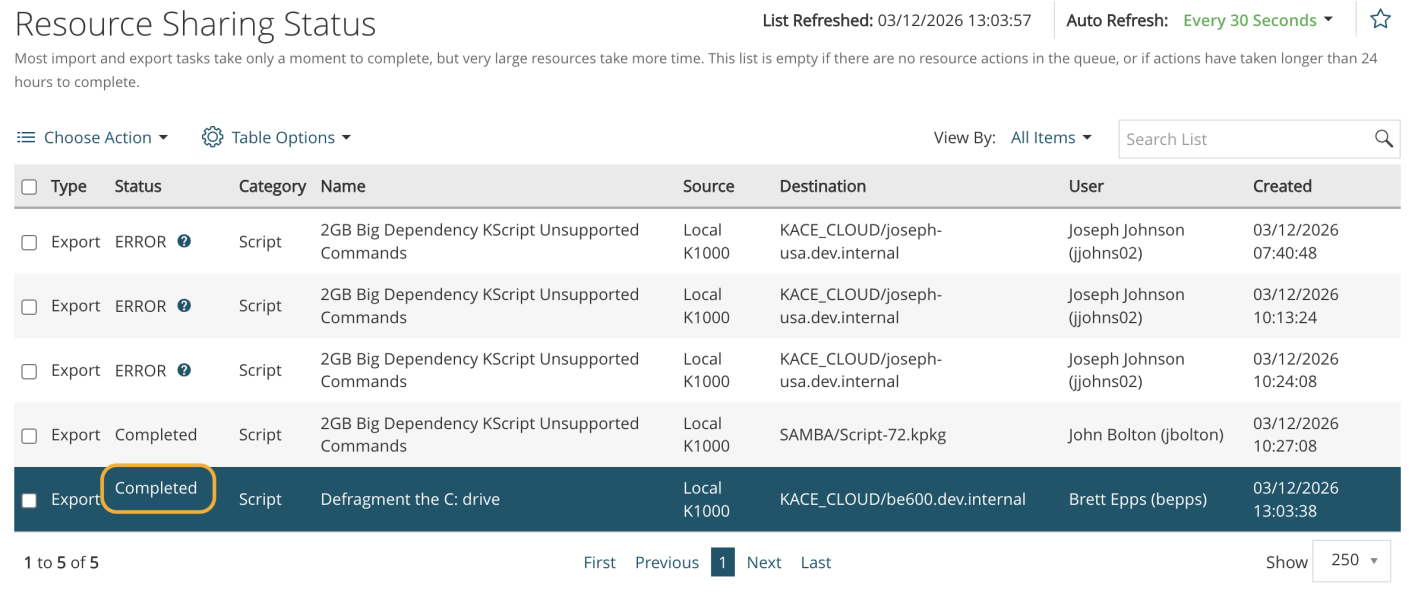
- Refresh the page (or turn on Auto Refresh) and wait for the status to change to "Completed".
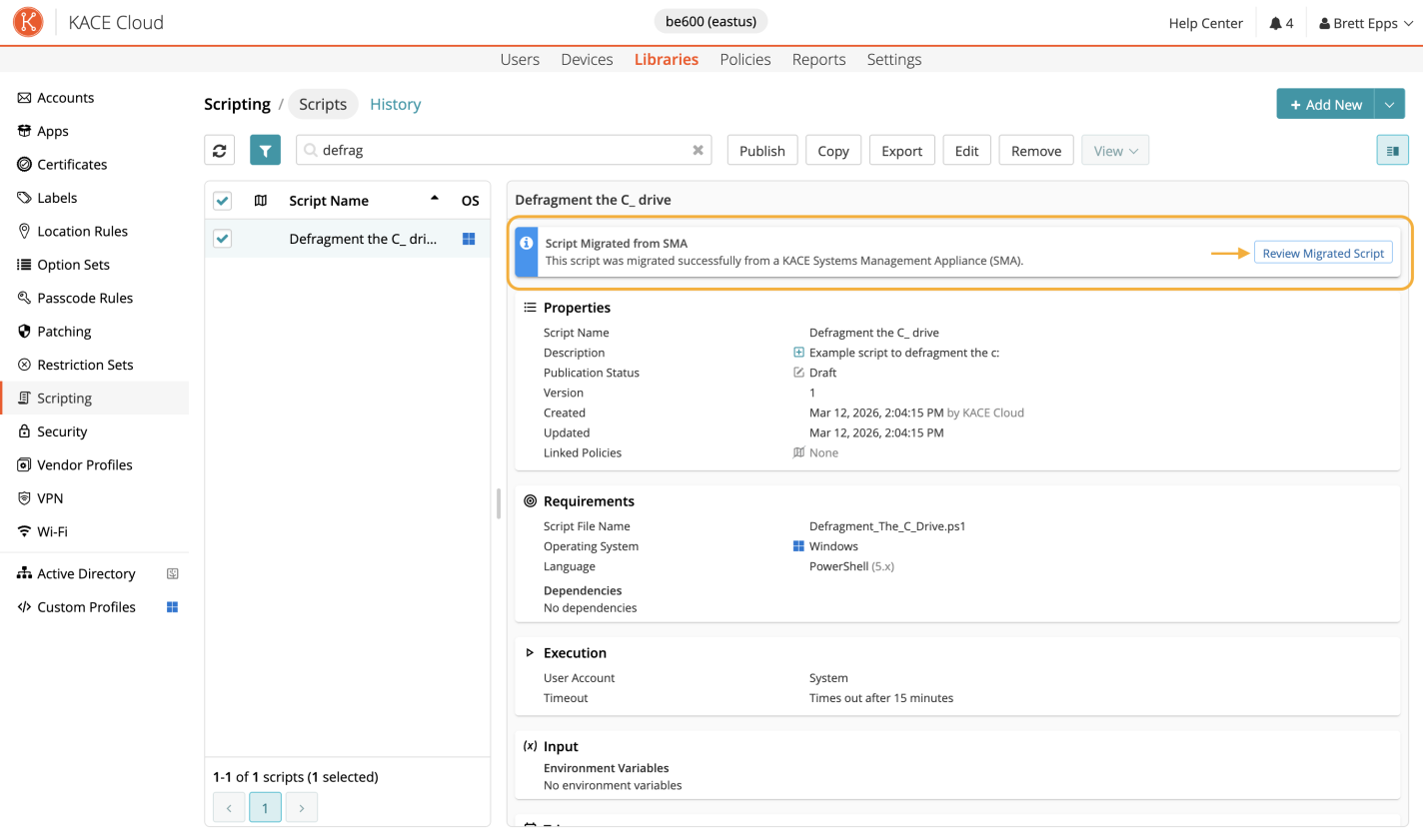
- Next, go to KACE Cloud and navigate to the script library: Libraries > Scripting > Scripts. Find your new script in the list and select it. The script detail pane will indicate that the script was migrated from an SMA. Click Review Migrated Script to open the script editor.
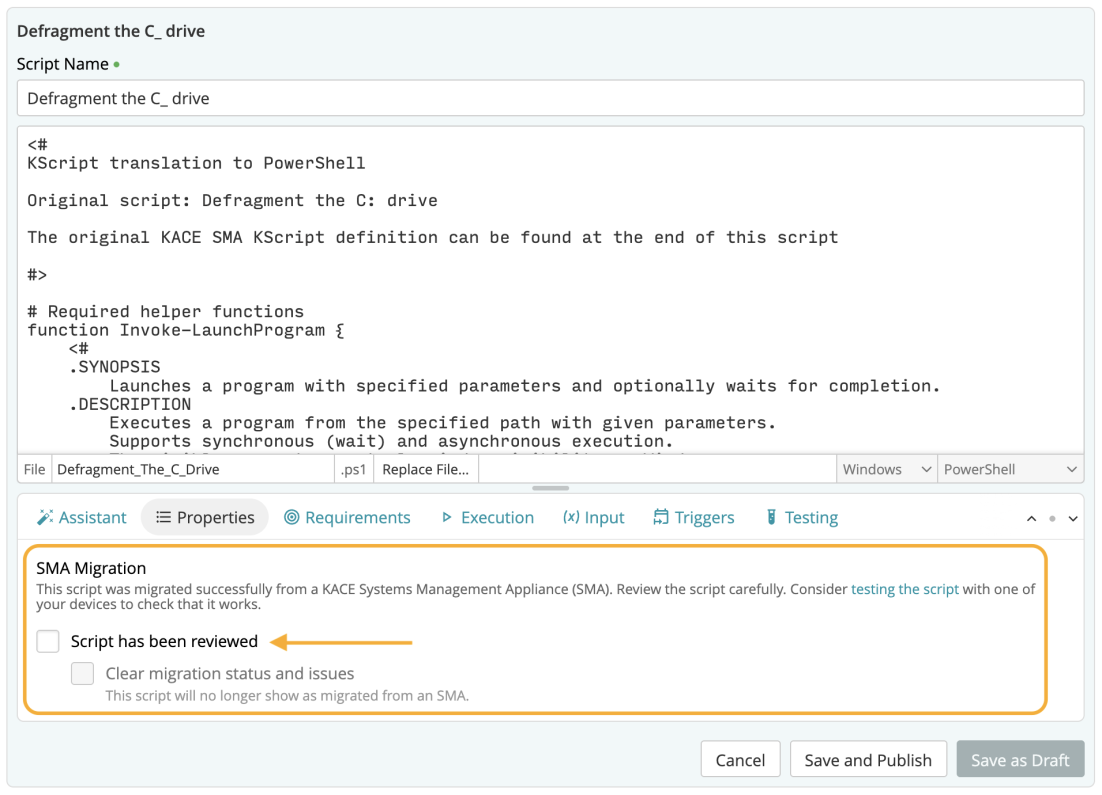
- In the script editor, the text of the script file (or in the case of a KScript, the translated script) is displayed. The Properties tab has a SMA Migration section where you can mark the script as reviewed. This allows you to track which of your migrated SMA scripts are ready for use in KACE Cloud. If you also want to remove any indication that the script was migrated from an SMA, check the second box labeled "Clear migration status and issues."
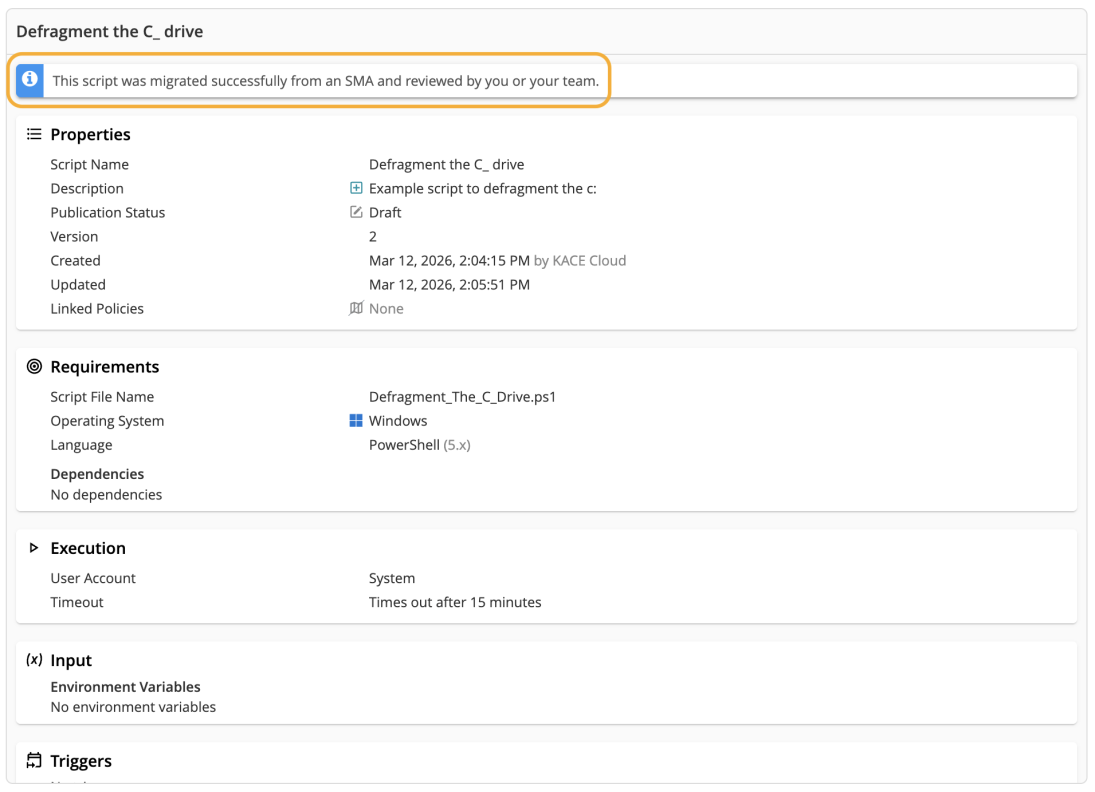
- After marking the script as reviewed, the detail pane will update to reflect the new status.
You can filter your script library by the SMA migration status. Click the filter icon next to the search box. Select "Not Migrated" to see scripts that were not migrated from an SMA, "Awaiting Review" to see scripts that have not been reviewed yet, or "Reviewed" to see migrated scripts that have already been marked as reviewed.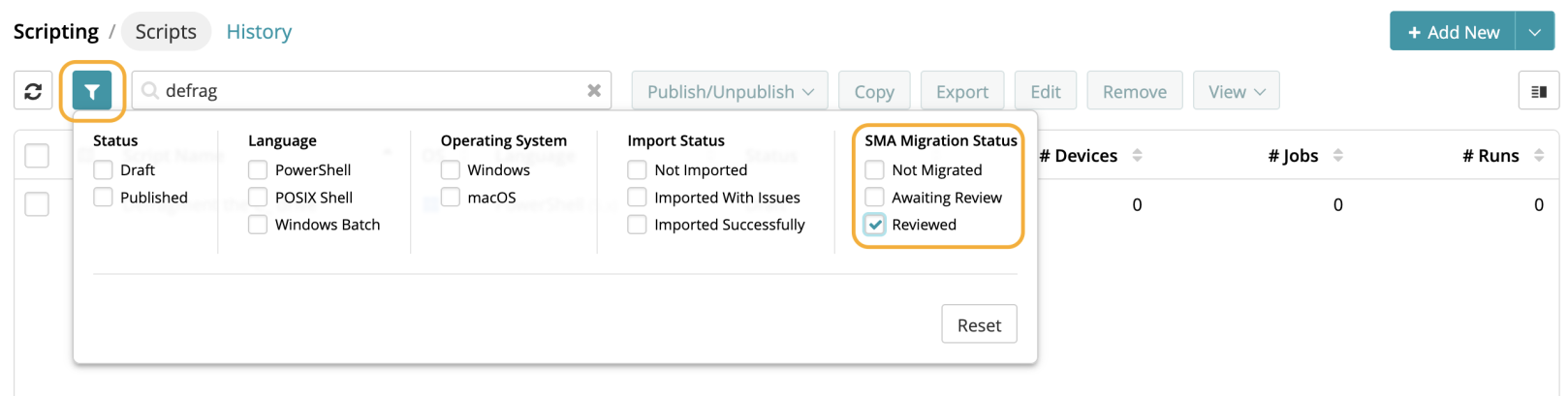
About Migrated SMA Scripts
-
If the SMA script targets all operating systems, KACE Cloud creates separate Windows and macOS versions.
-
The SMA script description and notes are combined in the migrated script details.
-
The SMA run-as setting is simplified to either System or Current User.
-
Some dependency files might not be imported if they are missing, exceed supported limits, or do not pass validation.
-
For macOS scripts, line endings are normalized automatically so the script can run correctly.
-
KScript translation can include warnings when a command or variable is not fully supported in KACE Cloud. In those cases, review the translated script carefully before using it.
-
Some KScript steps cannot be translated exactly. A migrated KScript should always be reviewed and tested before deployment.
-
Migrated scripts are created in Draft status and marked as Awaiting Review until you confirm they are ready.
-
If a migrated script does not behave as expected, open the script in the editor, review the translated content and any migration warnings, then test it before assigning it to devices.