Run a Script on a Device
This feature allows administrators to execute scripts on enrolled Windows and macOS devices directly from the admin portal. Admins can select one or more devices, choose a script from the library, customize settings, and monitor execution status in real-time.
When a script is executed, the system sends a run command to the agent on each selected device(s). The agent syncs the script definition, retrieves necessary dependencies, and updates its status as it progresses. Once the script starts running, the agent continuously reports its status. Upon completion, the system logs the results, updates the job status, and stores execution logs for tracking. This streamlined process ensures efficient script execution, real-time tracking, and visibility into job outcomes.
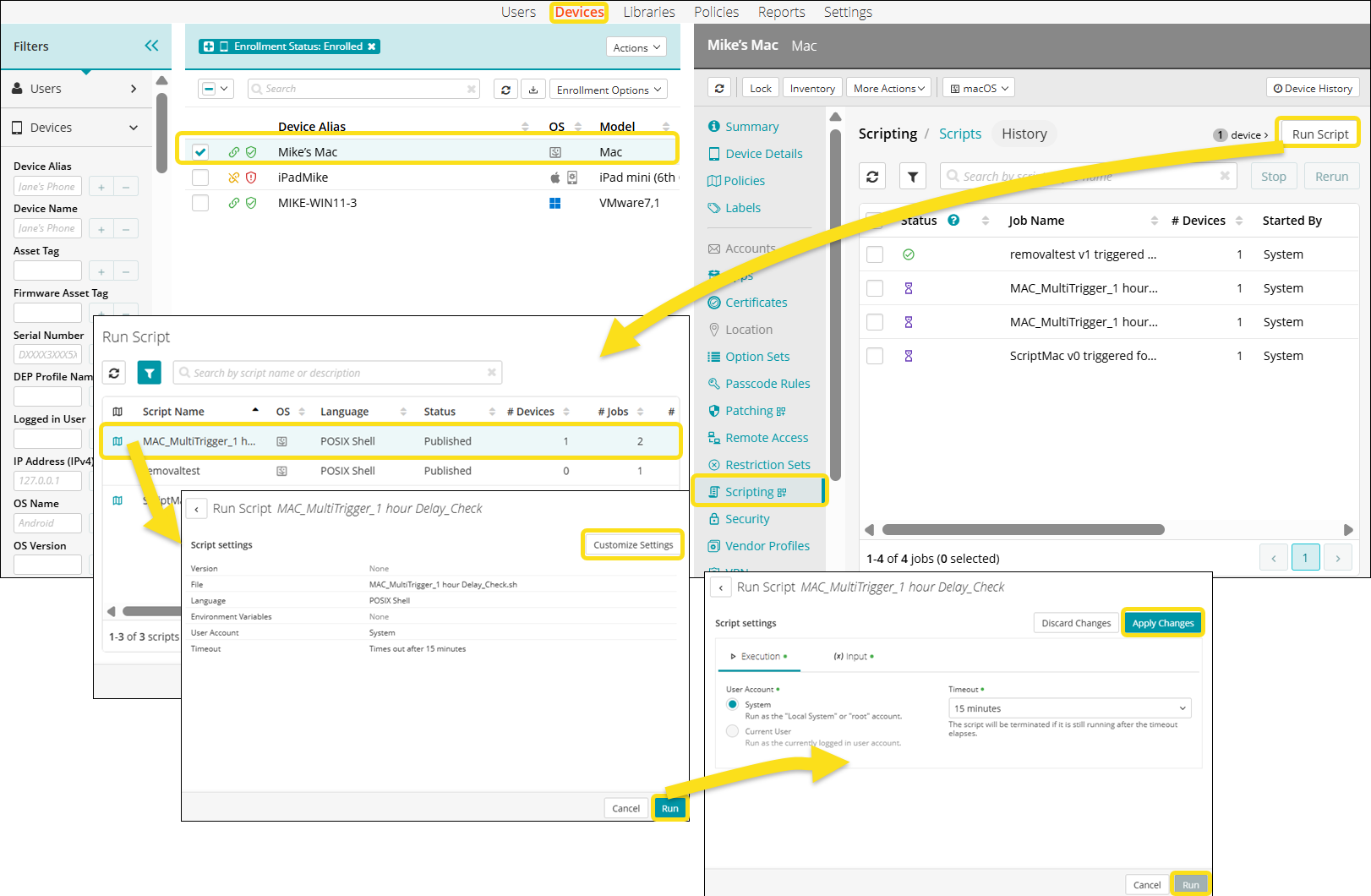
To execute a script on selected devices,
- Go to Devices in the top navigation to open the devices list.
- Select a device where the script will run. The details display in the in the right pane.
- Click the Scripting tab to display the list of scripts on the device.
- Click Run Script. A list of scripts in the library displays.
- Select a script from the available list.
- (Optional) Click Customize Settings to modify the script settings. You can change the script parameters if required.
- Enter a job Description if necessary.
- Click Run to execute the selected script on the chosen device(s).
A new job is created, and the system starts processing the script. You are redirected to the Jobs details page in Devices. - View the job status in Devices > Scripting > Jobs as the script runs. The status updates dynamically based on execution progress.