Link or Unlink Resources to a Policy
After associating labels to policies to target specific devices, the next step is to enhance policy functionality by linking relevant Resources such as Accounts, Apps, Certificates, Location Rules, Option Sets, Patching, and so on. You can also set or ignore compliance for a resource.
To add Resources to a policy:
- Click Policies in top navigation to open the policy library.
- Click an individual policy to open the policy details.
- In the right pane, in the Resources tab, click Add Resources to open the drop-down list.
- To link a resource, select a resource from the Add Resource drop-down list to open a dialog.
For example, if you select Apps, the Add Resource > Apps dialog opens (as shown below). - Slide the Link toggle to link/unlink the resource.
- To link the resource to policy, slide the Link toggle to right. The color of the toggle changes to green indicating the resource is linked.
- To unlink a previously linked resource, slide the Link toggle to left. The color of the toggle changes to red indicating the resource is unlinked.
- (Optional) In the Options column, click the icon to open Resource Options dialog. Select one of the following Compliance Type:
- Include - Select this option to include the resource when determining the compliance status.

NOTE: By default, all the Resources in a policy are included in compliance checks.
- Exclude - Select this option to exclude the Resource when determining the compliance status.
- Click Add Resources to associate the item to the policy. You can view the resource in the Resources pane.
- Click Push Resource to deploy the added resources to the target devices or users.
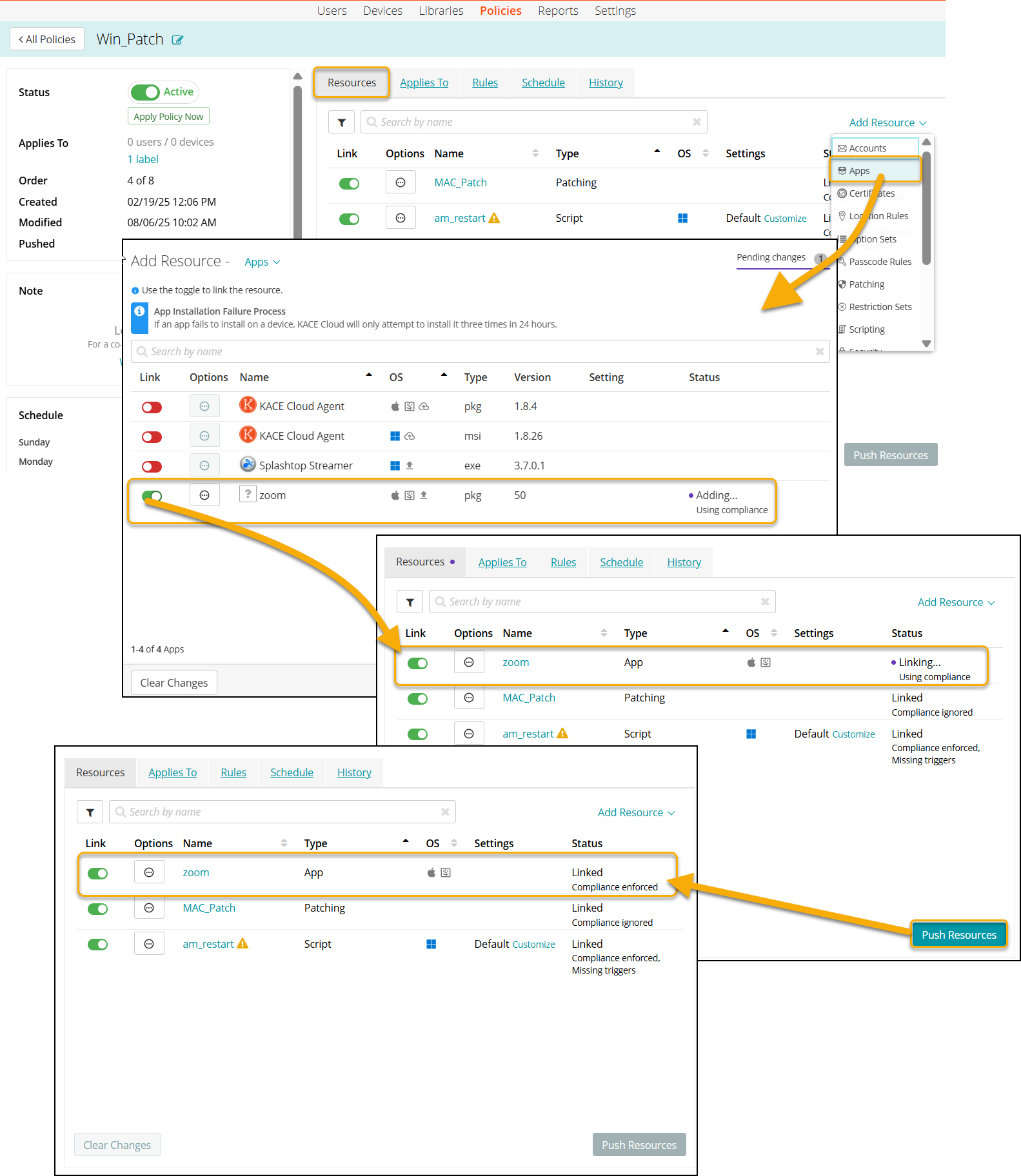
When linking a new configuration to an existing policy, if changes are not immediately pushed, the unsent change will remain in the Resources list with Linking... status and can be pushed.