Link or Unlink Passcodes
You can link a single Passcode Rule to a policy.
To link or unlink a passcode
- Click Policies in top navigation to open the policy library.
- Click an individual policy to open the policy details.
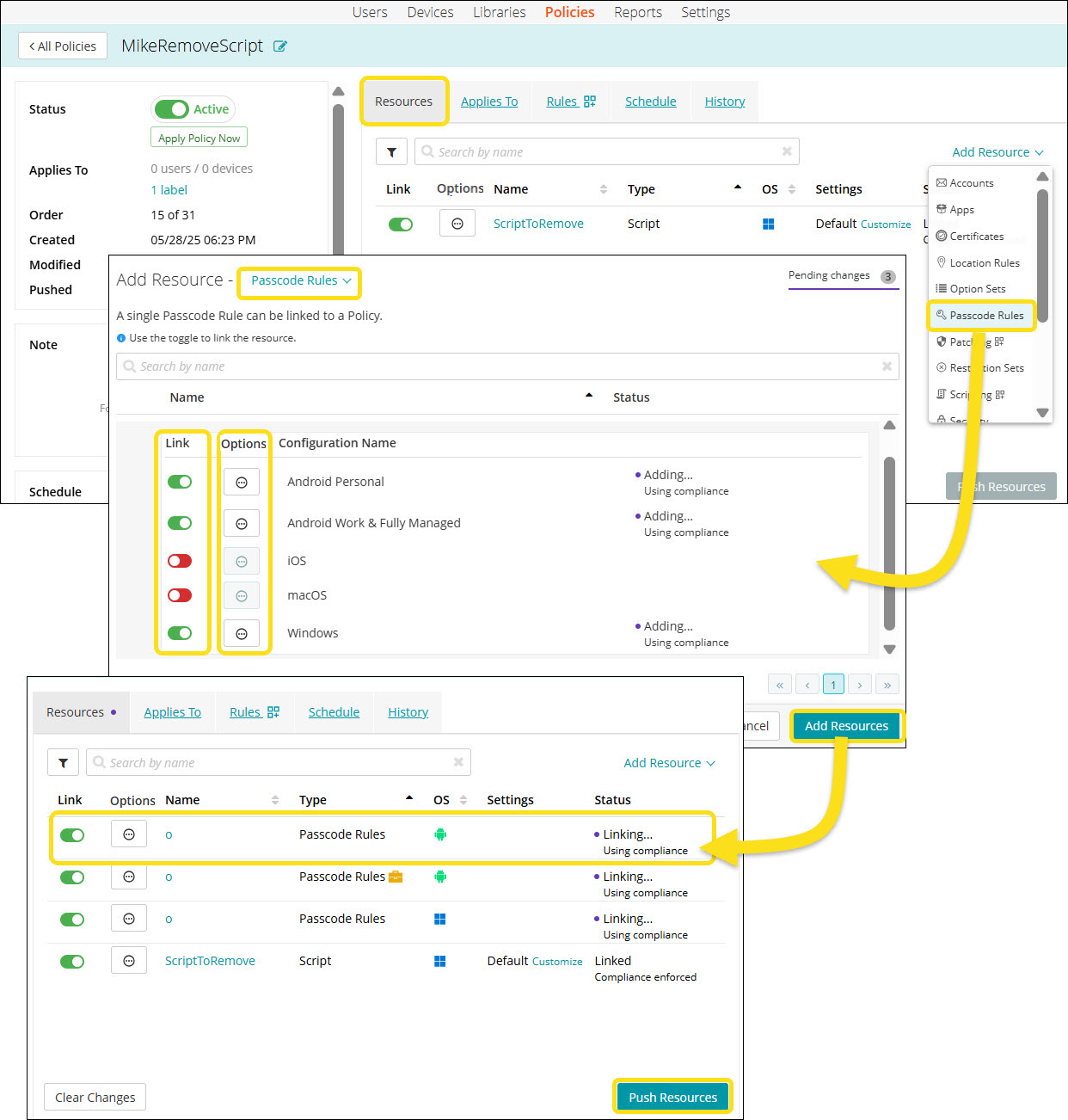
- In the right pane, in the Resources tab, click Add Resources to open the drop-down list.
- Select the Passcode Rules from the list to open the Add Resource - Passcode Rules dialog.
- Select and expand an individual rule.
For Passcode Rules, expand the rule to display the Configuration types. It allows the selection of specific OS types, including Android Device-wide, Android Work Profile, macOS, and iOS. - Slide the Link toggle to link/unlink the resource configuration type.
- To link the resource configuration type to policy, slide the Link toggle to right. The color of the toggle changes to green indicating the Passcode is linked.
- To unlink a previously linked resource configuration type, slide the Link toggle to left. The color of the toggle changes to red indicating the Passcode is unlinked.
- (Optional) In the Options column, click the icon to open Resource Options dialog. Select one of the following Compliance Type:
- Include - Select this option to include the resource when determining the compliance status.

NOTE: By default, all the Resources in a policy are included in compliance checks.
- Exclude - Select this option to exclude the Resource when determining the compliance status.
- Include - Select this option to include the resource when determining the compliance status.
- Click Add Resources to attach the Passcode Rule to the policy.
- Click Push Resource to deploy the added Passcode Rule to the target devices or users.