Override device-specific time zone
KACE Cloud allows you to control when should a policy run by using time zones. By default, each device uses its own time zone to follow the policy schedule. However, you can set a time zone for a specific device, or apply your tenant’s time zone to all devices, or just to those devices that don’t report a time zone. This helps ensure policies run at the right time, no matter where the devices are located. KACE Cloud evaluates time zone overrides in the following order.
- If a policy schedule time zone is configured for a device, any policy schedules associated with the device use the configured time zone.
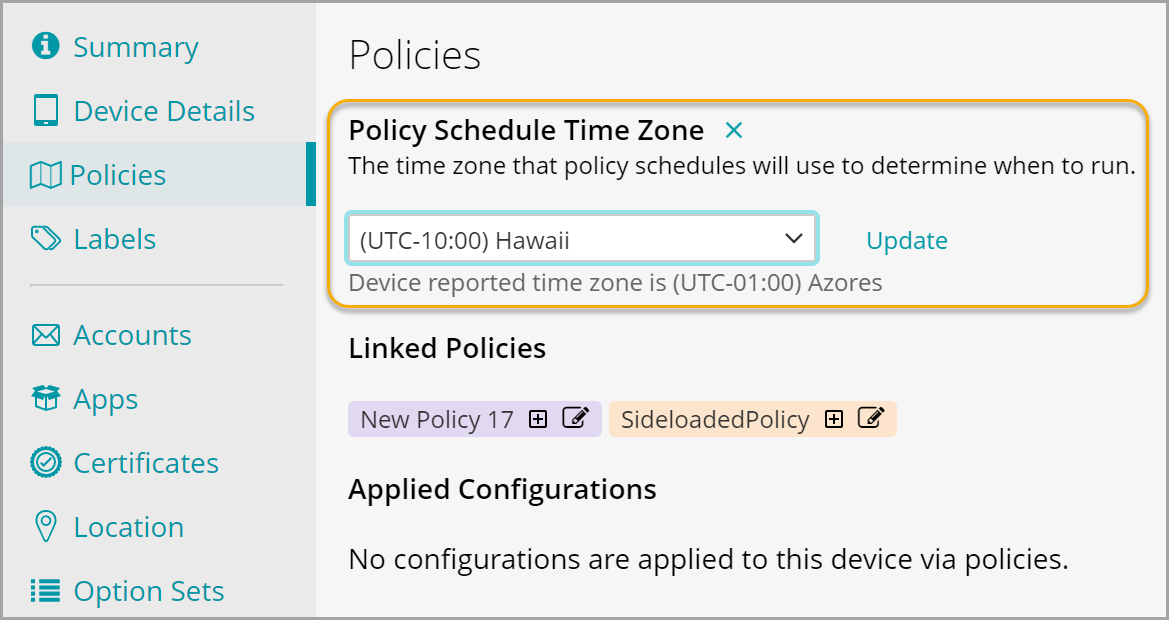
To override a device's time zone:
- Go to Devices in top navigation, and select a device.
- In the right panel, go to the Policies tab.
- Edit the Policy Schedule Time Zone.
- Select a desired time zone from the list, and click Update.
- If a policy schedule time zone is not configured for a device (as described in step 1), and the tenant's time zone override is configured, the device can report the tenant's time zone. Administrators have an option to associate the tenant's time zone with all devices, or only with those that do not report the time zone, as applicable.
To configure time zone overrides:
- Go to Settings in top navigation.
- In the left panel, choose KACE Cloud > Settings.
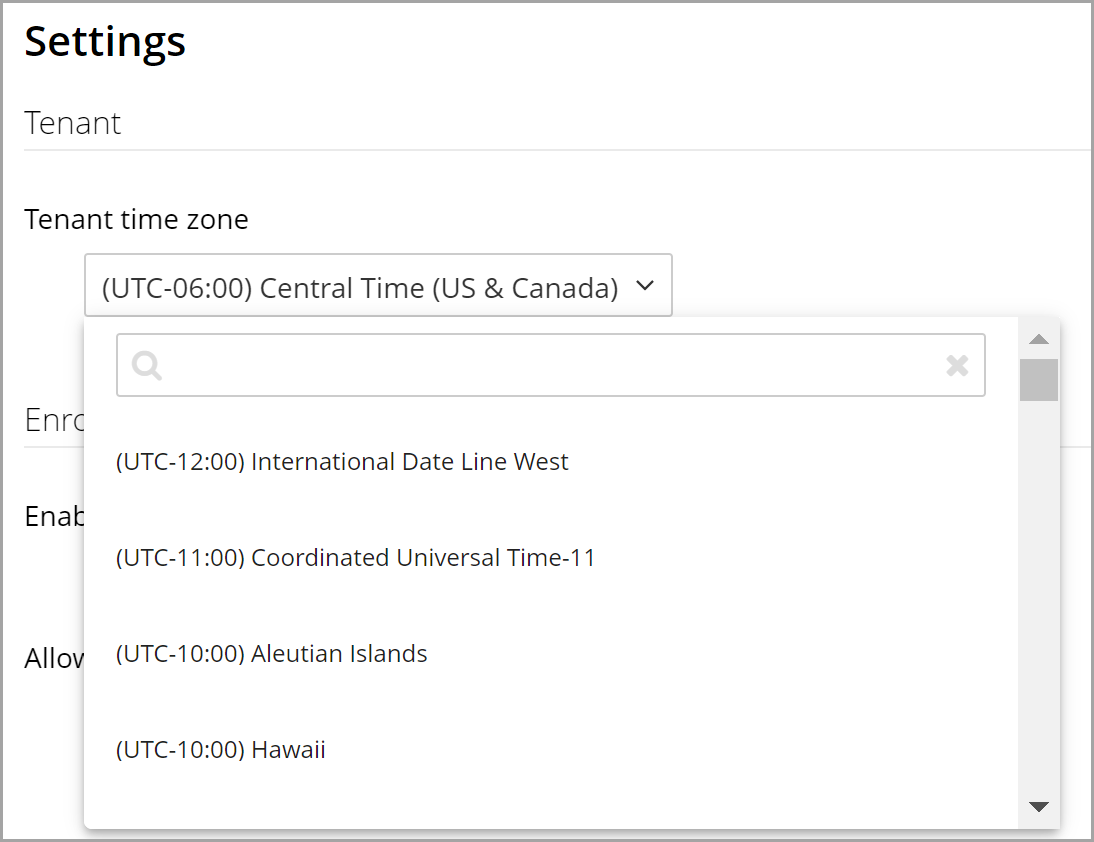
- On the Settings page, in the Tenant section, click Tenant time zone, and select a desired time zone.
- In the Devices section, from Time zone override options, select one of the following, as applicable:
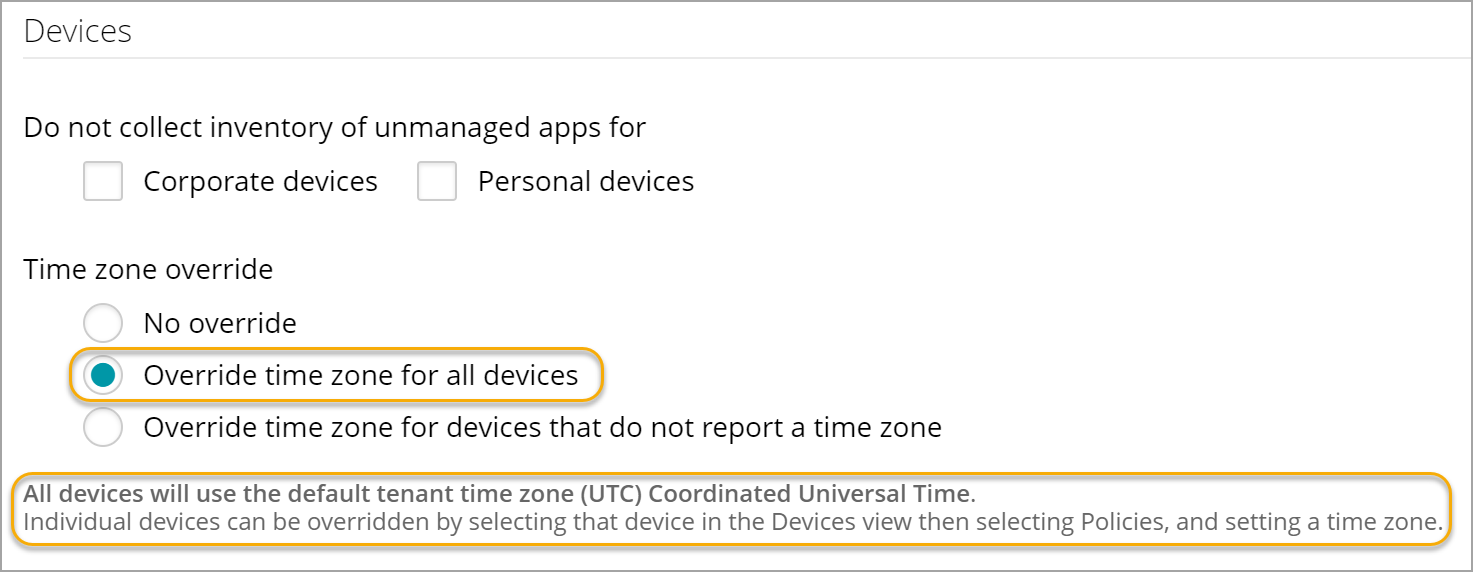
- Override time zone for all devices: Devices use the tenant's time zone. You can override a time zone associated with an individual device using the device's Policies tab. See step 1 for instructions.
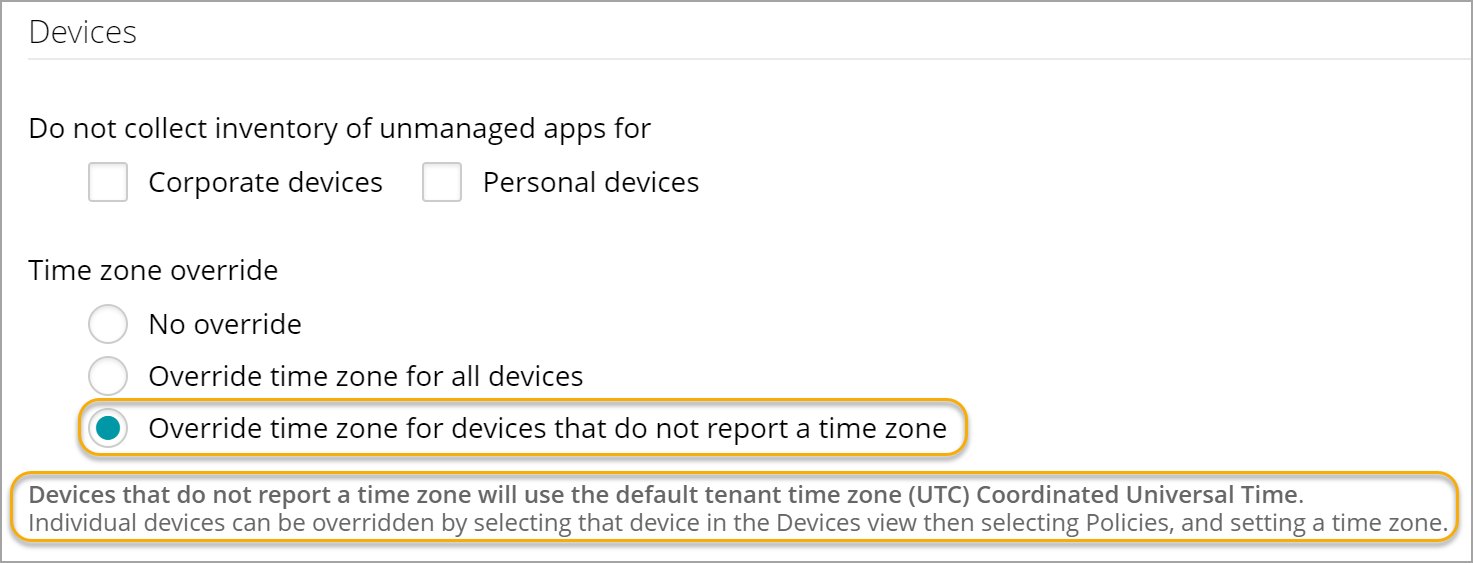
- Override time zone for devices that do not report a time zone: Devices that do not report a time zone use the tenant's time zone. You can override a time zone associated with an individual device using the device's Policies tab. See step 1 for instructions.
- Override time zone for all devices: Devices use the tenant's time zone. You can override a time zone associated with an individual device using the device's Policies tab. See step 1 for instructions.
- In the KACE Cloud Settings view, click Save.
- If a policy schedule time zone is not configured for a device (as in step 1), the device does not use the tenant's time zone (as in step 2), and the device reports a time zone, any policy schedules use the device-reported time zone.
To ensure the tenant's time zone does not override the device's time zone:
- Go to Settings in top navigation.
- In the left panel, choose KACE Cloud > Settings.
- In the Tenant section, click Tenant time zone, and select a desired time zone.
- In the Devices section, select No override.
Selecting this option ensures that the selected tenant's time zone does not override the time zone reported by the device. Any applicable policy schedules apply to the device's time zone.
- In the KACE Cloud Settings view, click Save.
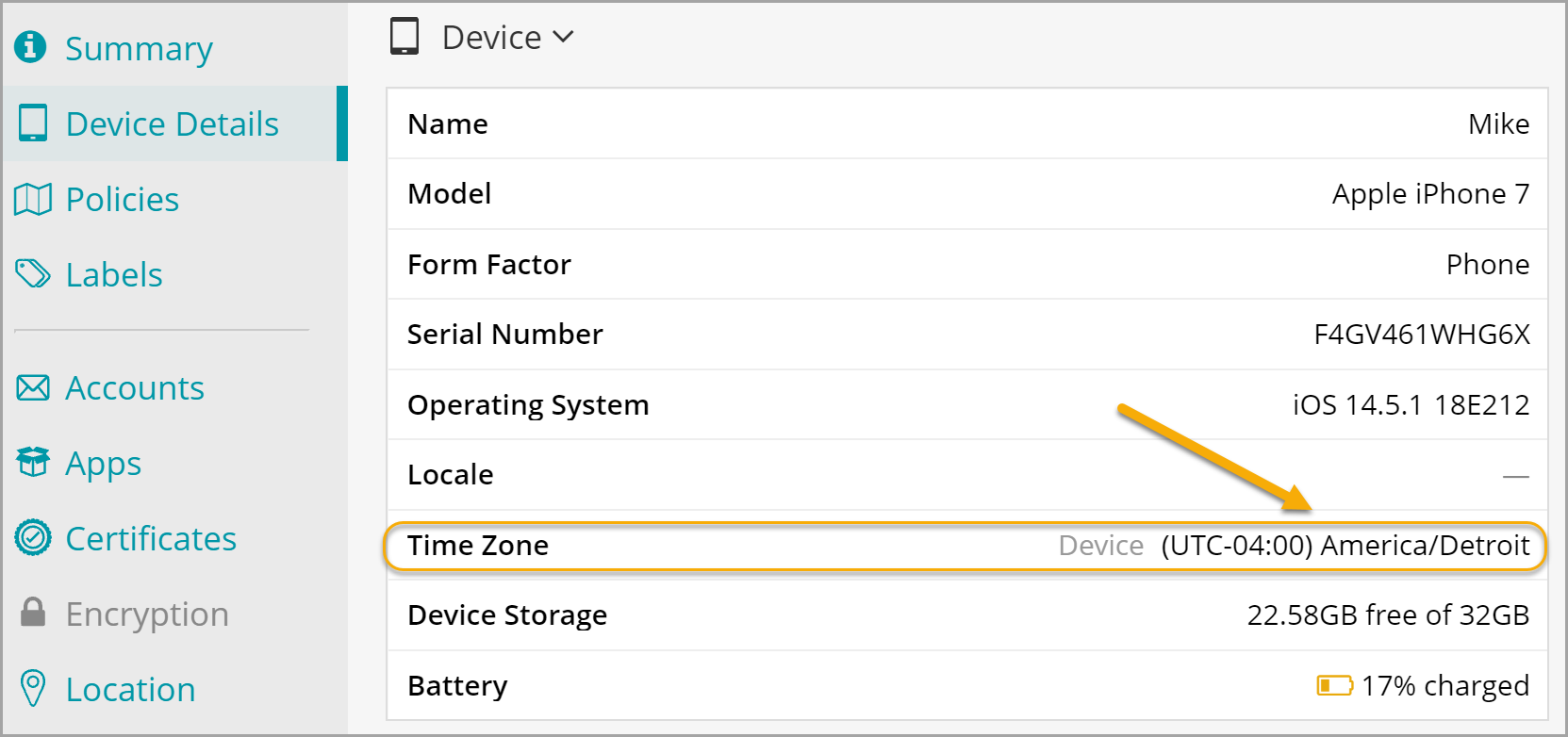
To see the device's time zone:
- Go to Devices in top navigation, and select a device.
- In the right panel, go to the Device Details tab.
- In the Device section, the Time Zone field shows the time zone reported by the device.
- If a policy schedule time zone is not configured for a device (as in step 1), the device does not use the tenant's time zone (as in step 2), the device does not report a time zone (as in step 3), KACE Cloud ignores any policy schedules associated with that device.