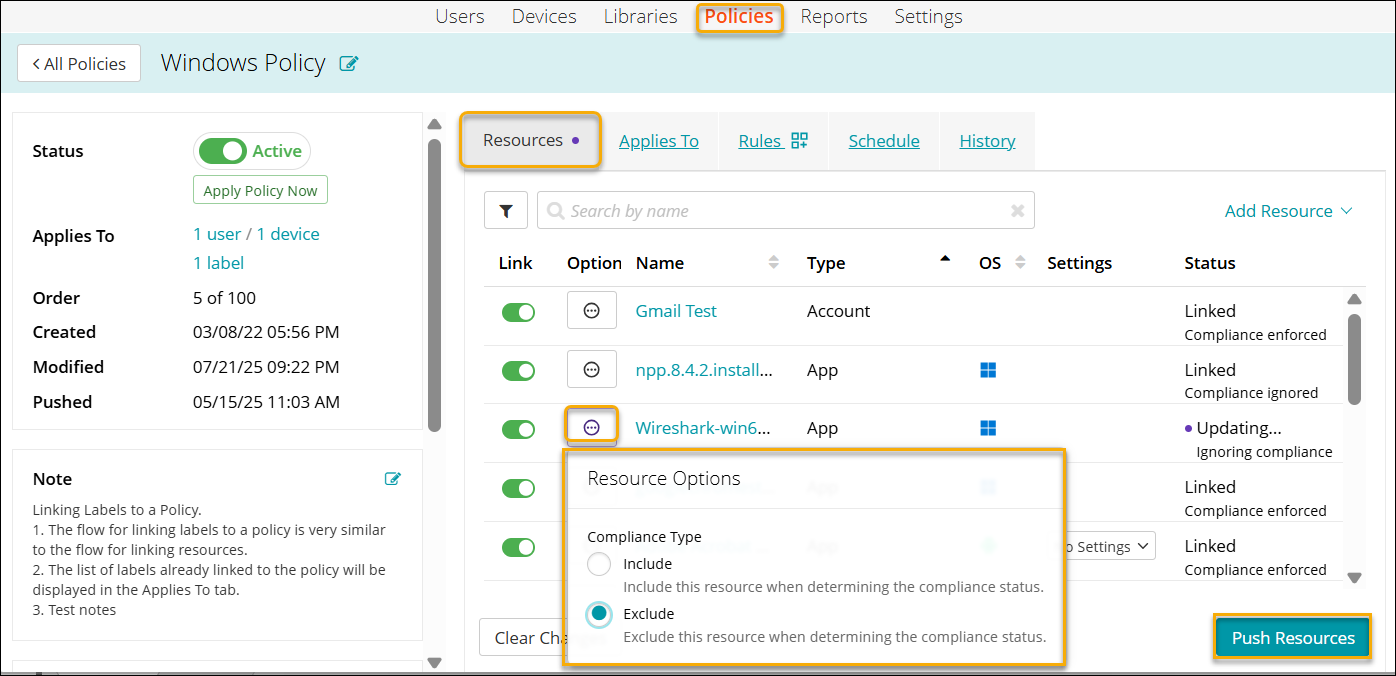
Setting Custom Compliance
An administrator can mark specific Resources such as Apps, VPN, Wi-Fi, Security, and so on, as non-critical so that their failure to install does not impact the overall device compliance status. The compliance state selected, whether Enforced or Ignored, will be displayed in the Status column.
To customize compliance,
- Go to Policies in the top navigation.
-
Click an individual policy to open the list of Resources linked to the policy.

NOTE: When you are setting Resources for linking to a policy, you can open each Resource from the Add Resources dialog.
- Identify a Resource you wish to ignore.
- Click the Option icon to open the Resource Option dialog.
- Select one of the following Compliance Type:
- Include - Select this option to include the resource when determining the compliance status.
NOTE: By default, all the Resources in a policy are included in compliance checks.
- Exclude - Select this option to exclude the Resource when determining the compliance status.
The status of the Resource changes to Linking... Using Compliance (if selected Include) or Adding... ignoring compliance (if selected Exclude) with a purple color dot beside it.
A purple color dot appears beside Resources tab indicating the updates are pending. - Include - Select this option to include the resource when determining the compliance status.
- Click Push Resources to confirm the changes.
The compliance changes are applied to the policy.
The Status changes to Linked - Compliance enforced or Linked - Compliance ignored, and the purple dot disappears as the changes are confirmed. - View the changes made to the compliance status in the History tab.