Configure Device and User Views
Table columns in the Device and User views are configurable. Each table has a defined set default columns. Once you've chosen to deviate from the default columns, your preferences (column property, sort order, display order and width) will be saved (in local storage) and re-loaded upon return.
To select which properties to view as columns in the Users and Devices tables, click "Manage Columns".

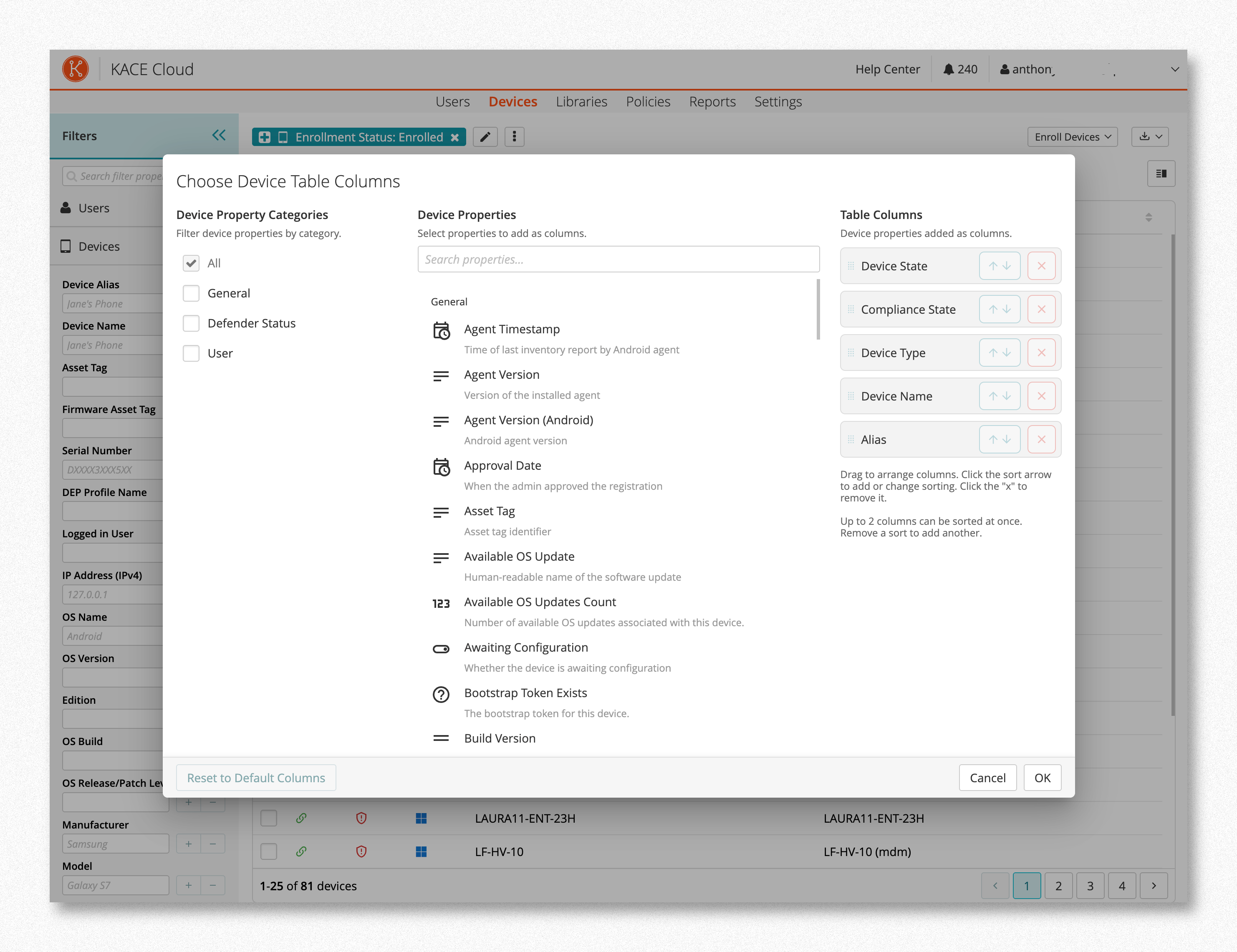
This will open a dialog that will allow you to select from a set of properties that can be shown as table columns.
- The "Property Categories" column (left) may contain a list of filters that can be used to make finding a specific property easier. These filters may not exist for all tables.
- The "Properties" column (center) contains a list of properties that are available to be shown as a table column. It also has a search input to assist in locating specific properties.
- The "Table Columns" column (right) contains the current selection of properties to be shown as table columns.
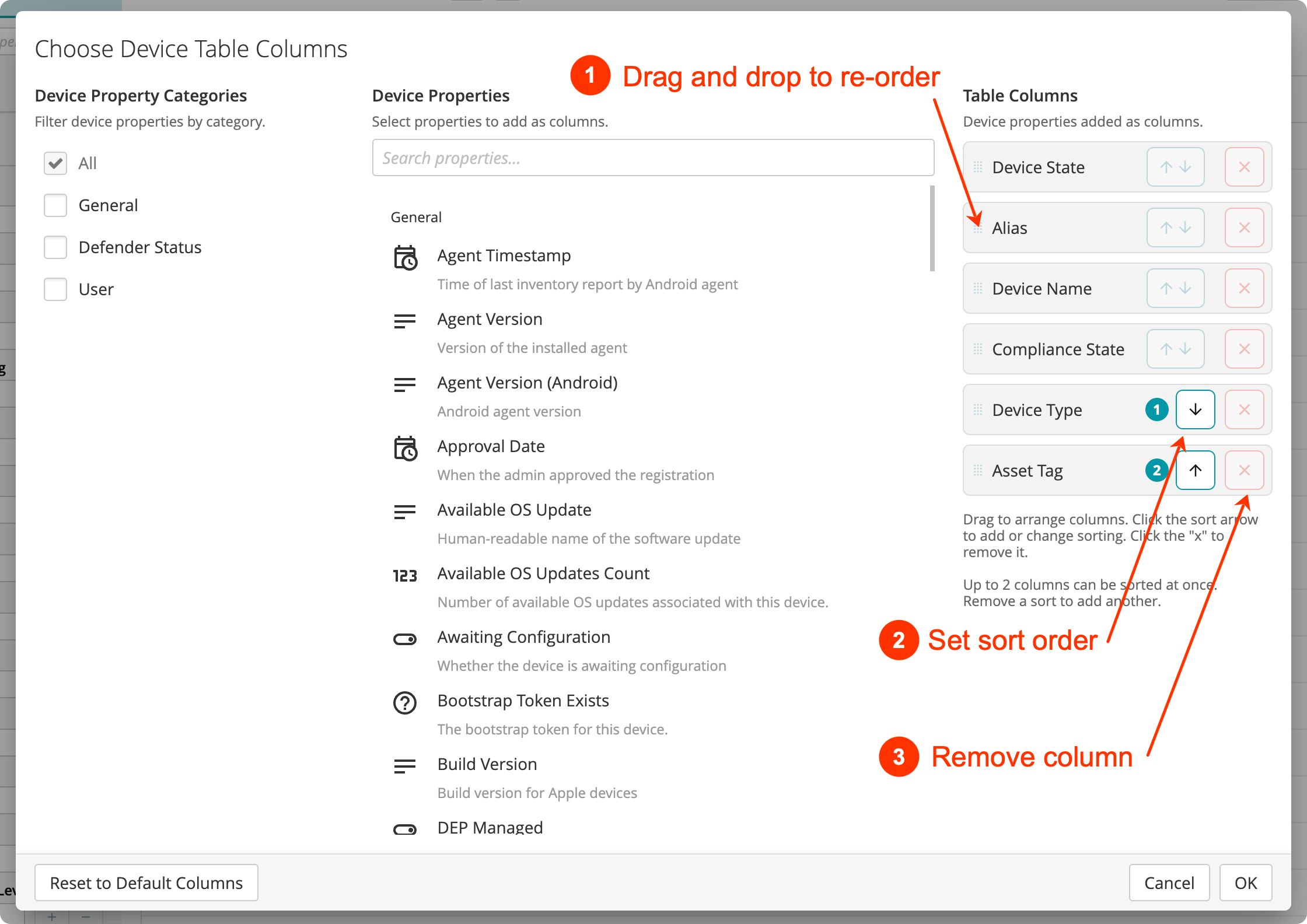
Properties selected and shown within the "Table Columns" section can be
- Rearranged by clicking and dragging (top-to-bottom order corresponds to left-to-right column order in the table).
- Sorted by clicking the up/down arrows next to a property. Sorting is limited to 2 columns at a time; sort order precedence is indicated by the numbered badges.
- Removed by clicking the "X".
To reset the columns back to the default columns, open the "Manage Columns" dialog, click "Reset to Default Columns" button in the lower left corner then click "OK".