First step: Configure user accounts in KACE Cloud
Prerequisite
KACE Cloud authenticates users using accounts that you create locally. Administrators also have an option to add external users using an LDAP Sync Service or through Single-Sign On (SSO). User accounts can be managed on the Users tab.
To enable new users to enroll their devices, you must ensure that their user account exists in KACE Cloud, and that the account has the Device User role.
|
|
NOTE: The Device User role is assigned by default for every new user that is created, but if it becomes unassigned at any point, it causes an error in the enrollment process. |

You can also associate additional roles with user accounts, as needed. See Create user accounts.
To configure a user account in KACE Cloud:
- Ensure that the user account exists in KACE Cloud.
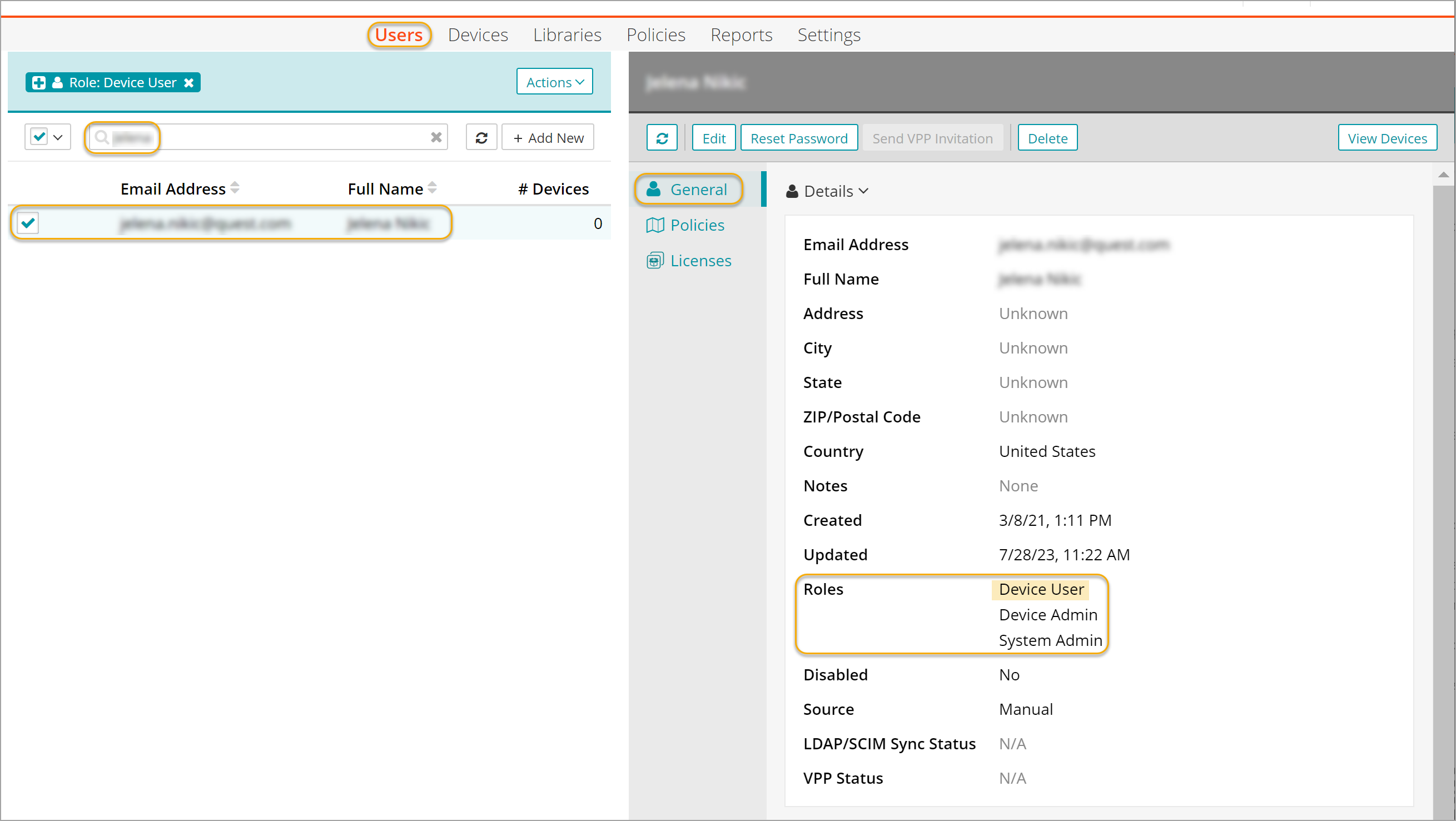
- Select the Users tab in top navigation.
- Look for the user account by typing the user's name in the Search box.
- If you do not find the desired user account, create one manually, or externally by integrating with an LDAP Sync Service or configuring SSO.
- On the Users tab, select the user account and in the user account view that appears on the right, on the General tab, in the Roles area, verify that the Device User role is listed.
- If the Device User role is not listed, complete these steps.
- In the user account view, click Edit.
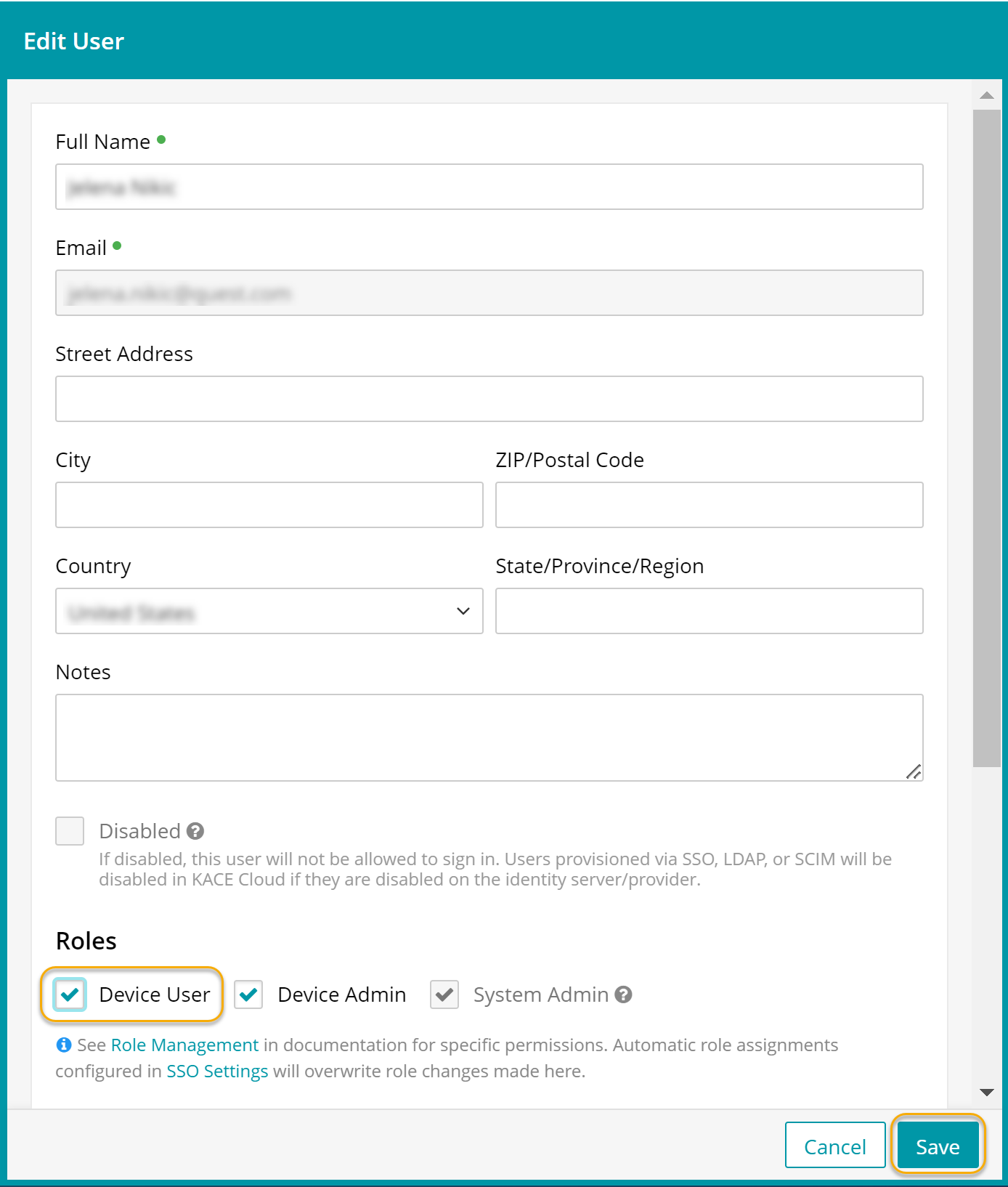
- In the Edit User view that appears, in the Roles area, select Device User.
- Click Save.