Assign Apple devices to Apple MDM servers
An organization's Apple account has details about the devices purchased from Apple or authorized resellers. When you log in to ABM, you can use that information to associate the devices you want to start managing with desired MDM servers. You can look for specific devices by entering order IDs or the serial numbers of Apple devices. Alternatively, upload a CSV file containing a list of target devices.
To assign Apple devices to Apple MDM servers:
- Assign your organization's Apple devices to applicable MDM servers:
- Go to Apple Business Manager and sign into your organization's account using the corporate Apple ID. The account must have the Administrator or Device Enrolment Manager role.
- In the sidebar, click Devices, and in the search field, type the desired device's serial or order number. Alternatively, upload a CSV file containing the list of all devices that you want to assign to a specific MDM server.
- In the list of devices, select one or more desired devices, and next to Edit MDM Server, click Edit.
- Click Assign to server, then select the MDM server you want to assign the device to.
- Click Continue, then review the information in the dialog box that appears, and click Continue.
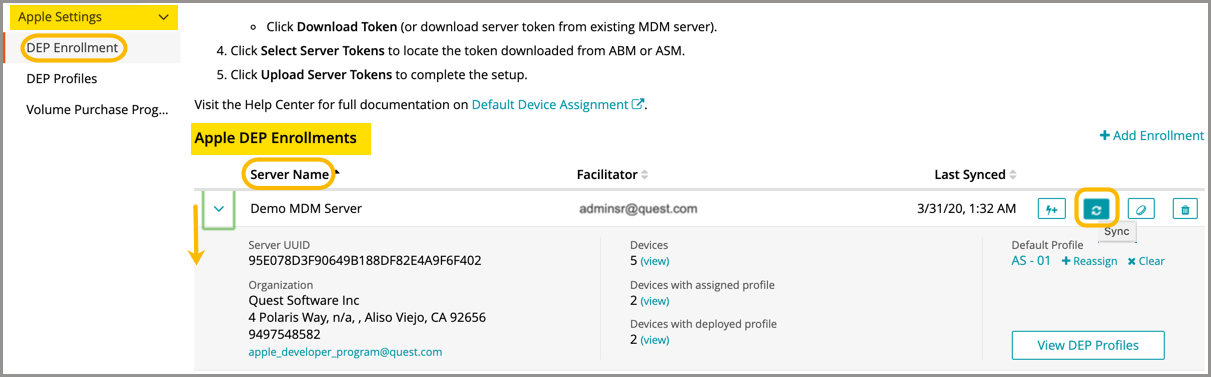
There is a nightly sync between KACE Cloud and the Apple DEP portal. If you add devices and want to manage them right away, you can force a sync in the Settings > Apple Settings > DEP Enrollment section of KACE Cloud. This will pull any changes that were made to the linked server.
- If you are re-enrolling a device after a device reset, perform a factory reset on the the device and auto-enroll in KACE Cloud.
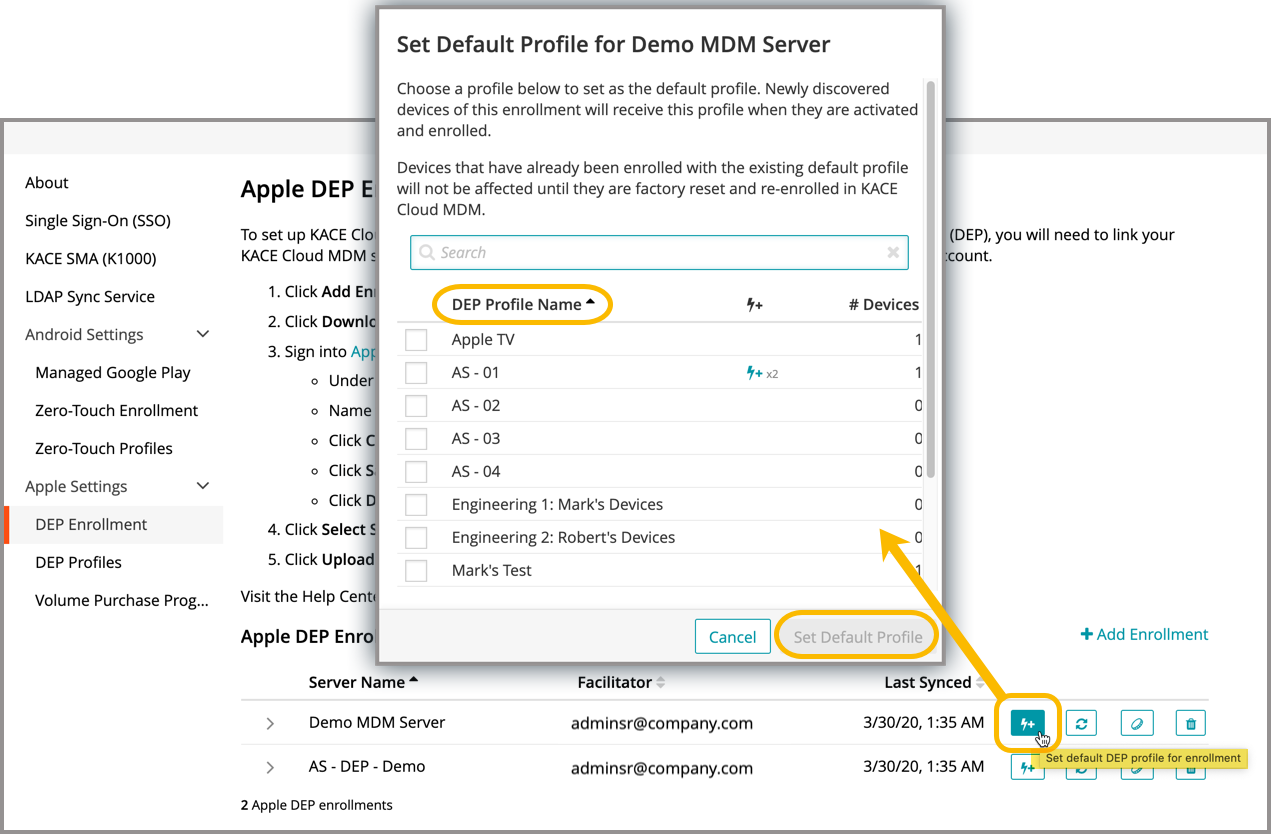
- Optional. Set a default profile in KACE Cloud: