Manage user roles
Related Video: Creating User Accounts
To assign a role to a user:
- Select the Users tab in top navigation.
- To assign roles to a new user:
- Click Create New User.
- Enter the new user's details into available fields.
- To assign roles to an existing user:
- Select a user from the list.
- In the right panel, click Edit User.
- Select the role or roles for the user.
- Click Create.
The Device User role is assigned by default, but it can be removed. However, to successfully enroll a device, an end user must be assigned the Device User role.
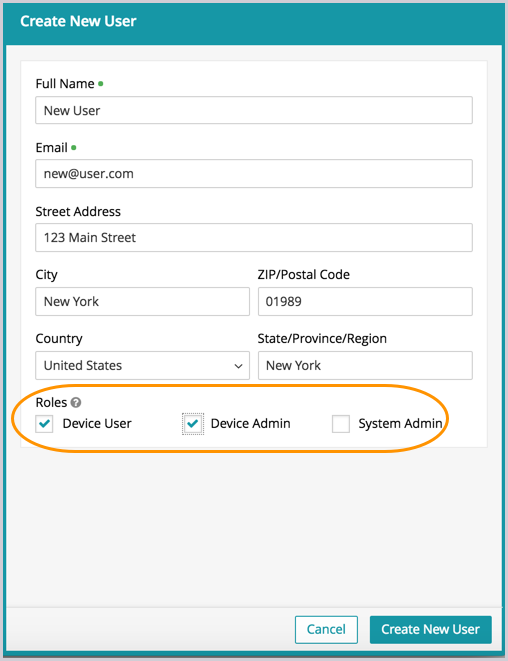
The following user roles are available:
| Role | Privileges |
|---|---|
| Device User |
|
| Device Admin |
|
| System Admin |
|
If user role assignment is set to Automatic during SSO Configuration, a manual attempt to update an individuals user's role via the Users > Edit User path may appear possible, but will be overwritten by the original SSO Configuration. To resolve, the configuration setting can be changed to Manual, which will then enable editing of individual user roles.
For the enrollment process to complete successfully, an end user must be assigned the Device User role. The Device User role can be assigned manually through the Users > Edit User path, or it can be assigned automatically through single sign-on (SSO) configuration. For more information, see