Windows apps: Install apps on devices
- Go to the Devices tab.
- Select a device.
- In the right panel, open the Apps section.
- Click +Add.
- Under the 'From Library' tab, select the app name.
- Click Install on Device.
Windows apps: Install apps on devices using Policies
- Select the Policies tab in top navigation.
- Complete one of the following steps:
- To create a policy, click Add New.
- To edit an existing policy, in the policy row, click the Edit button.
- In the General section, select one or more labels associated with target devices. For more details about labels, see Using labels to group similar items.
- In the policy view that appears, in the left panel, click Apps.
- Select the app that you want to associate with the policy.
- In the right panel that appears, click Link to Policy.
- In the top right corner, click Activate and Push Changes.
When the policy is activated, the selected app is installed on all devices associated with this policy. For more information about policies, see Using policies to manage device configurations.
Windows apps: Remove apps from device
The product GUID must be correct in order for an uninstall MSI command to work. See Important information about the Product GUID for additional details.
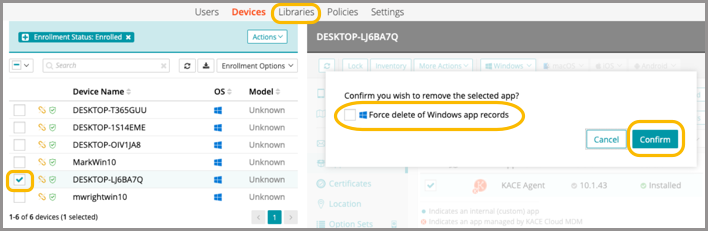
- Go to the Devices tab.
- Select a device.
- In the right panel, open the Apps section.
- Select the app that you want to remove.
- Click Remove.
- Select Force delete of Windows app records.
This setting allows you to clear the record on the device in case there is a need to manually delete the app.
- Click Confirm.