Using policies to manage device configurations
Policy management gives administrators a unified means of targeting devices with specific configurations—including Wi-Fi, VPN, apps, labels, passcodes, profiles, and so on. Administrators can create, manage, and link policies in KACE Cloud, as well as access compliance information for users and devices. KACE Cloud actively monitors and enforces each device configuration. The policies feature also provides status monitoring of unsent changes during deployment and maintains a history of all changes after deployment.
|
|
NOTE: When apps are linked to policies, the system will attempt to install each app up to three times within a 24-hour period. |

Policy Workflow Overview
The policy lifecycle defines the structured process through which administrators can create, configure, deploy, and manage policies across devices to ensure consistent and secure endpoint management.
- Create Policy: This step establishes the core structure where resources and device labels will later be linked.
- Activate Policy: You activate the policy to make it editable and ready for resource linkage.
- Link Label: You assign labels to the policy to define its target devices. Labels map the policy to specific devices for deployment. Without linked labels, the policy won’t apply anywhere.
- Add Resources: You add Apps, Scripts, Option Sets, Profiles, Certificates, and so on to a policy. These resources define what configurations, security settings, or scripts will be applied to devices.
- Add Patching Rules: You configure Patching Rules, Patch Deployment Notifications, and device restart notifications.
- Set a Schedule: You can add schedules to a policy to activate it at specified times. This is useful for policies that you want to enable periodically.
- Deploy Policy: Once configuration and labels are added, the policy is pushed to the linked devices. This enforces the defined settings and configurations in a live environment.
- Edit or Update Policy: You can modify the resources, labels, or configurations as needed to keep the policy aligned with evolving device requirements and business needs.
- Audit Policy History: Use policy history to view the changes, what was changed, and when. This provides traceability, supports audits, and helps investigate unexpected behavior.
Working with the Policy UI
On the All Policies page, an admin can add new policies, reorder the list of existing policies, reload the policies, search for policies, view inactive policies using the toggle button, and open each individual policy to view individual policy details. The Policies page displays a list of active policies by default.
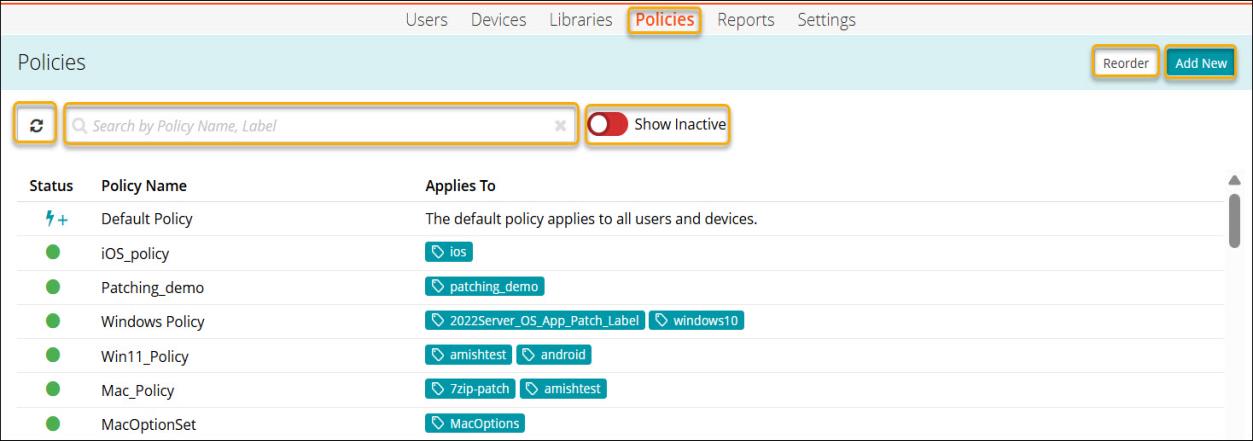
A policy can be applied to all devices regardless of operating system. KACE Cloud will automatically apply the resources of the policy that are valid for each OS.
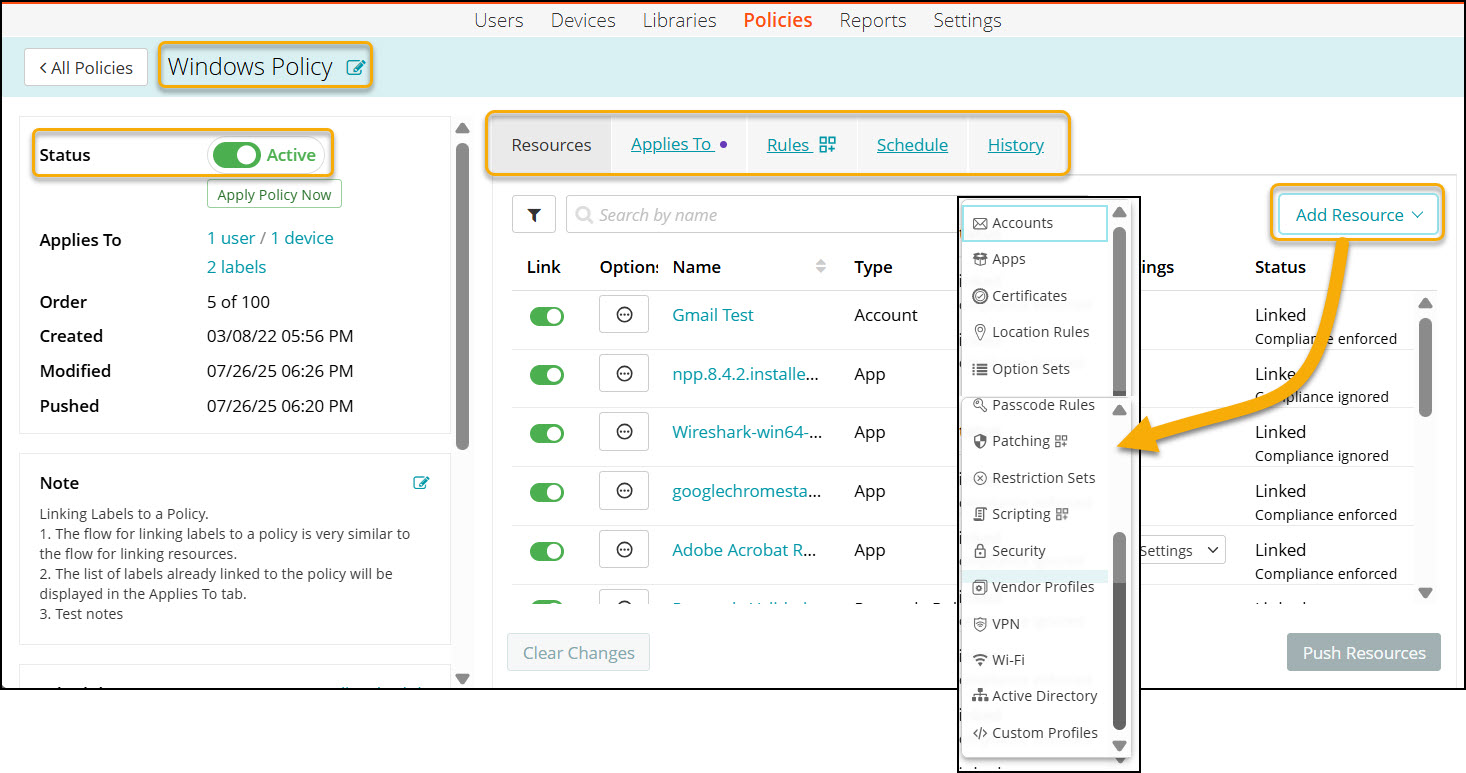
On the Individual Policy page, an admin can add/edit configurations as well as activate/deactivate, rename, add notes, view unsent changes, change history, and add resources, schedule, and rules.
|
|
NOTE: In some cases, it may take a long time for KACE Cloud to apply policies to newly enrolled Android devices. To address this problem, ensure that the device has a stable internet connection and verify that the enrollment steps are properly applied. For more details, see Enrolling Android devices. |

About the default policy
The default policy is the baseline created by the system and will always be applied first to all users and devices. Policies that are added subsequently will take precedence over the default policy in the event of a conflict.
When first setting up policy management in KACE Cloud, the default policy will be pre-populated with all library configurations that were previously marked for auto deploy on enrollment. An admin can edit any of the policy settings, however, the ordering of the default policy in the policy list cannot be changed.