Configure passcode rules on managed devices
Related Video: Passcode Policy Configuration
New passcode rules can be created in the library, then applied to devices. Passcode rules can also be applied to one or more devices using a policy. Passcodes can then be managed by editing rule sets in the library.
If you have previously applied passcode restrictions to any of your devices, those restrictions will remain in place.
Set passcode rules
To set passcode rules for Android Personal, Android Work, Android Fully Managed, iOS, macOS, or Windows devices:
- Select the Devices tab in top navigation.
- Select one or more devices.
- In the right panel, select Passcode Rules.
- Choose a rule set based on device OS.
- Choose an existing passcode rule, then click Choose [OS] Passcode Rule Set.
If you're applying a passcode rule set to multiple devices running different operating systems, for example, iOS and Android, you will see multiple rule set choices in the right panel. When you make your selections, OS-specific rule sets are applied only to their OS-specific devices.
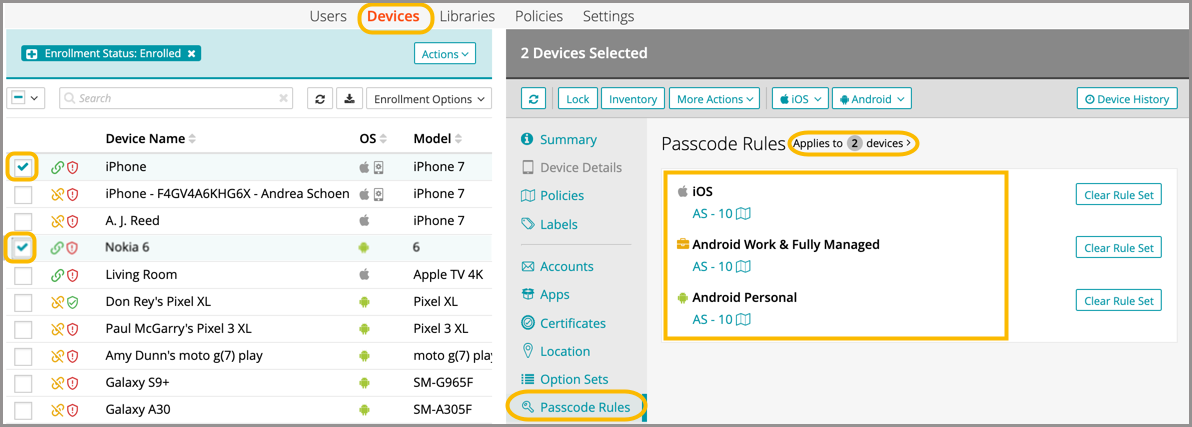
A passcode rule set will override a default policy, if a default policy has been set.
About Android passcode rules
- Once a policy is set on an Android device, device users are notified that they must change their passcode to prevent restricted access to their work apps.
- It is up to the end user whether to combine their work and personal passcodes. If combined, the more restrictive of the two passcode rules is applied.
- If a user opts to use different passcodes for their work and personal profiles, commands sent to the device through KACE Cloud such as Set Passcode, Clear Passcode, and Lock do not apply to the entire device, only the work profile. For example, a Lock command closes any open managed apps and locks the work profile on the device, forcing the user to re-enter their work passcode to launch any of their managed apps.
Set or remove a passcode rule from Library using policies
- Select the Policies tab in top navigation.
- Complete one of the following steps:
- To create a policy, click Add New.
- To edit an existing policy, click an individual policy to open the policy details.
- In the Applies To section, select one or more labels associated with target devices. For more details about labels, see Using labels to group similar items.
- In the right pane, in the Resources tab, click Add Resources to open the drop-down list.
- Select the Passcode Rules from the list to open the Add Resource - Passcode Rules dialog.
- Select and expand an individual rule.
For Passcode Rules, expand the rule to display the Configuration types. It allows the selection of specific OS types, including Android Device-wide, Android Work Profile, macOS, and iOS. - Slide the Link toggle to link/unlink the resource configuration type.
- To link the resource configuration type to policy, slide the Link toggle to right. The color of the toggle changes to green indicating the Passcode is linked.
- To unlink a previously linked resource configuration type, slide the Link toggle to left. The color of the toggle changes to red indicating the Passcode is unlinked.
- (Optional) In the Options column, click the icon to open Resource Options dialog. Select one of the following Compliance Type:
- Include - Select this option to include the resource when determining the compliance status.

NOTE: By default, all the Resources in a policy are included in compliance checks.
- Exclude - Select this option to exclude the Resource when determining the compliance status.
- Include - Select this option to include the resource when determining the compliance status.
- Click Add Resources to attach the Passcode Rule to the policy.
- Click Push Resource to deploy the added Passcode Rule to the target devices or users.
For more information about policies, see Using policies to manage device configurations.
Clear passcode
The Clear Passcode command unlocks a device until a new passcode is set.
- Select the Devices tab in top navigation.
- Select a device from the list.
- In the right panel, click More Actions and select Clear Passcode.
- Click Confirm.
On iOS devices, clearing the passcode disables Touch ID.
Android only: Set passcode
The Set Passcode command will replace an existing passcode. This function is only available for Android devices.
- Select the Devices tab in top navigation.
- Select a device from the list.
- In the right panel, click the Android dropdown.
- Choose Set Passcode.
- Enter the new passcode, then click Save.
The set and clear passcode functions are different in Android 7.0 and later. On versions prior to 7.0, an administrator could set or clear the passcode as desired. On Android N and later, the passcode can only be set on devices that do not already have a passcode set, and passcodes cannot be cleared. The user interface does not currently warn users who are attempting to set or clear a passcode on Android 7.0 or later, but an error message will appear. Note that attempting to clear a passcode will also fail if there is a policy in place that requires use of a passcode to do so.
See also:Using policies to manage device configurations and Enroll personal macOS devices.