Manage reports
|
|
NOTE: We’ve upgraded the reporting system to offer better clarity and flexibility. If a report doesn’t load or shows an error, it’s likely due to these recent enhancements. |

The Reports tab allows you to access, create and manage reports. The main area displays a collection of cards, each representing a specific report. You can use the navigation pane on the left-hand side to select a report filter, or tag, associated with the report. To look for a report with specific text in its name or description, use the search box in the navigation bar. You can view the contents of a selected report, copy the report, add it to your Favorites list, export it to a CSV file, or delete the report. From here, you also have an option to edit the selected report. For more information, see Create and edit reports.
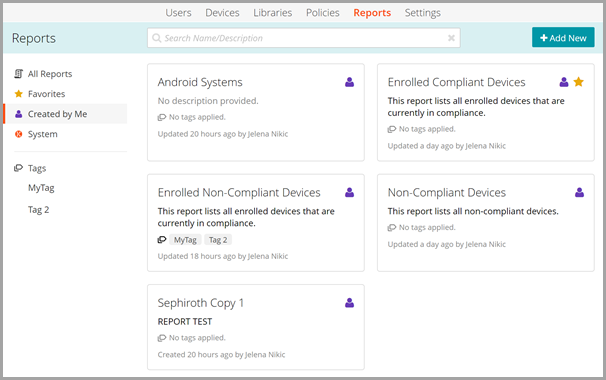
To manage reports:
- To view a specific report:
- On the Reports tab, on the left-hand navigation pane, select a group containing the report that you want to view:
- All Reports: All reports that exist in your environment, including the reports created by other users, and system-defined reports included with KACE Cloud. This view is selected by default on the Reports tab.
- Favorites: Reports that you marked as Favorite. This can be any reports that you created, those created by other users, or system-defined defined reports.

TIP: To quickly add or remove a report from Favorites, click the star icon in the report detail, edit, or list page.
- Created by Me: Reports that you created.
- System: Reports included with KACE Cloud.
Alternatively, use the Tags section in the navigation pane, and select a tag associated with the report that you want to view, if applicable.
- In the main area, review the list of cards and click the one representing that you want to review. Optionally, you can use the search box in the top bar to look for a report with a specific name or description.
The Reports tab refreshes, showing the contents of the selected report.
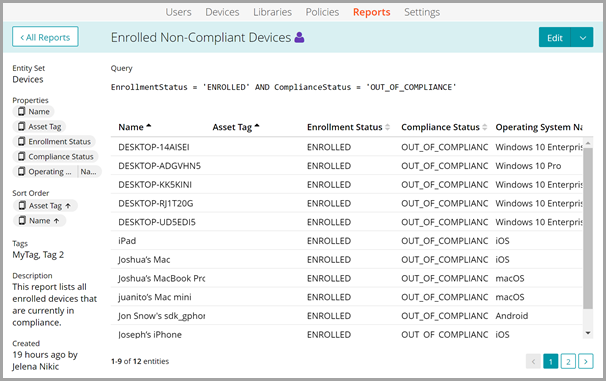
- Review the contents of the report. You can make changs to it, if required. For more information, see Create and edit reports.
- On the Reports tab, on the left-hand navigation pane, select a group containing the report that you want to view:
- Select an action that you want to perform on the selected report.
- In the top-right corner, click the down-facing arrow on the right of the Edit button.
- Select an action from the menu that appears:
- Add to Favorites: If the report does not exist in your Favorites view, this option adds a card associated with this report to this view. Use it for any reports that you want to review on a regular basis.
- Remove from Favorites: If the report already exists in your Favorites view, this option removes the card associated with this report from this view. Use it for any reports that you no longer need.
TIP: To quickly add or remove a report from Favorites, click the star icon in the report detail, edit, or list page.
- Copy: Creates a copy of the selected report, with your user name as the report author. Any reports that you copy are added to your Created By Me view.
- Export as CSV: Generates a CSV file with the report contents. CSV files can be easily imported into common spreadsheet programs, such as Microsoft Excel.
- Delete: Deletes the selected report. Select this option displays a confirmation message, allowing you to confirm the delete action.
- To return to the main Reports view, in teh top-left corner, click All Reports.