Configure silent authentication
KACE Cloud allows you to enroll Samsung Knox and Android Zero-Touch devices without creating login accounts for your end users, as required.
Android silent authentication for Android AMAPI uses special generated tokens that can be added to the Samsung Knox and Android Zero-Touch profiles. These tokens allow devices to enroll without requiring user authentication. Note that changing any AMAPI enterprise settings like the Enterprise Name, Google Authentication settings or the Terms Of Use options causes any existing silent enrollment tokens to become invalid and they are deleted.
Android silent authentication for Android EMM uses a certificate that you generate in KACE Cloud to sign the initial enrollment request. KACE Cloud verifies the following information in the signature before proceeding with the enrollment:
- A valid certificate from KACE Cloud is used to sign the request.
- The certificate used to sign the request has not expired.
- The certificate used to sign the request matches the one stored in the customer's database as their Android Identity certificate.
To configure Android EMM silent authentication for Samsung Knox and Android Zero-Touch devices:
- Create an Android Identity Certificate in KACE Cloud.
- Go to Settings.
- In the left-hand panel, choose Android Settings > Silent Enrollment.
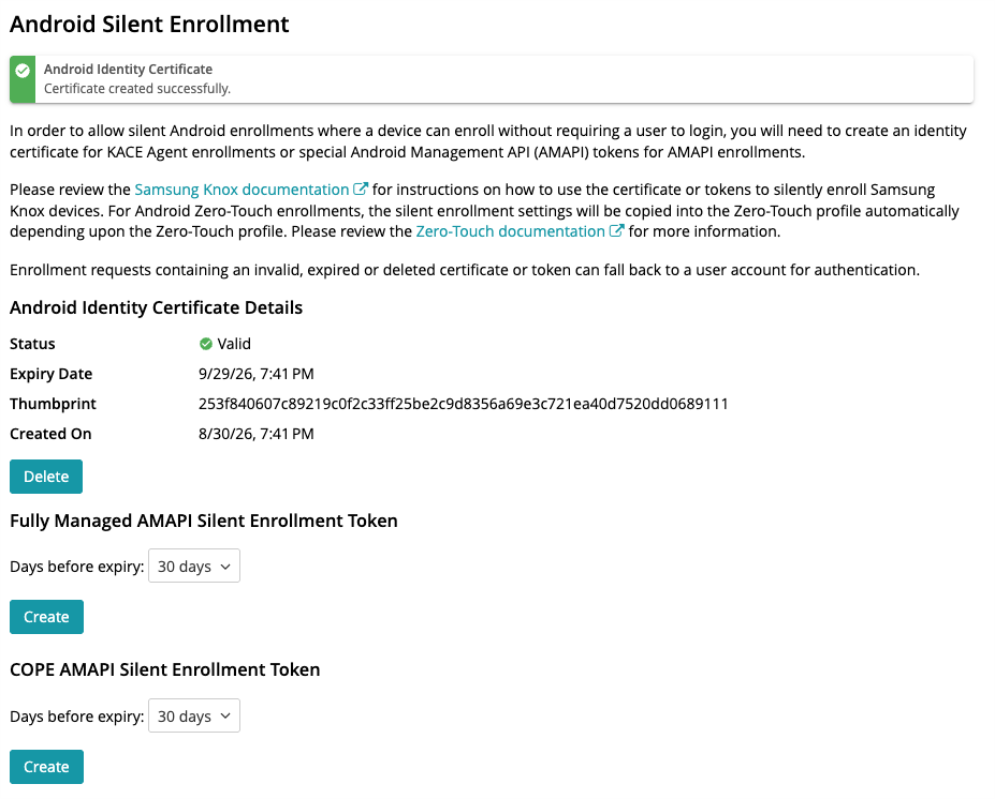
- On the Android Silent Enrollment page, go to the Android Identity Certificate Details section, click Days before expiry, and select the length of time that you want the certificate to be valid.
- Click Create.
The Android Silent Enrollment page refreshes, displaying details about the newly created certificate, such as its expiry date and the thumbprint.
At this point you also have and option to delete the certificate, when required, however doing so causes the silent authentication to fail.
- Samsung Knox devices only.
- In the left-hand panel, choose Android Settings > Samsung Knox Enrollment.
- On the Samsung Knox Enrollment page, under Fully managed settings > step 1, copy the text for MDM Configuration. For COPE enrollments, see the COPE settings section.
- In the Samsung Knox portal, in the MDM Configuration section, paste the text you just copied into the DPC extras section.
- In the MDM Configuration text string, set the silent_authentication parameter to true.
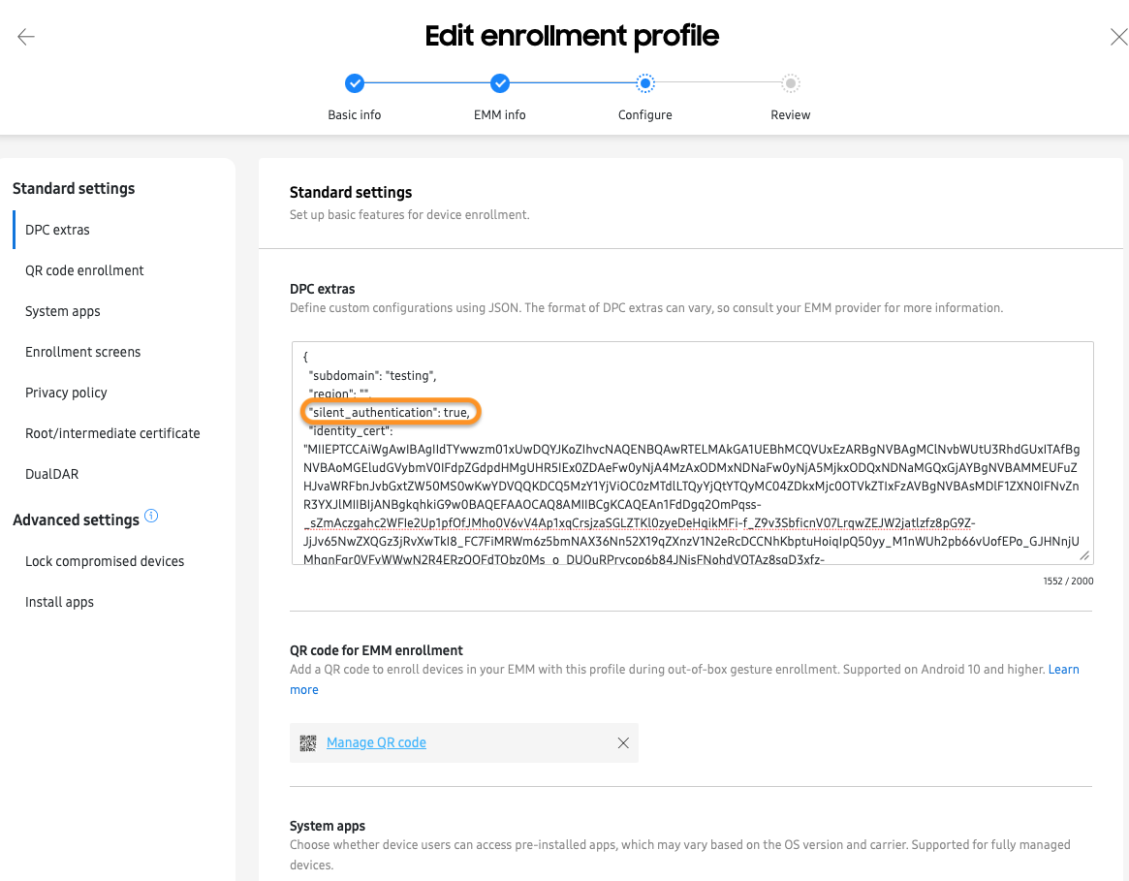
- Save your changes. Note that if the identity certificate expires and is then recreated, any Samsung Knox profiles will need updated with the new certificate.
For more details about configuring device enrollment in the Samsung Knox Portal, see Configuring Samsung Knox device enrollment.
- Android Zero-Touch devices only.
- Create or edit an Android Zero-Touch profile.
- Select the Silent Authentication check box. Note that if the identity certificate expires and is then recreated, any Zero-Touch profiles will need to be saved again to use the new certificate.
For details on creating or editing Android Zero-Touch profiles, see Add new Android Zero-Touch profile.
- If silent authentication fails on a device:
- Re-set the device and try again, or
- Log in to the KACE Cloud enrollment portal, and enroll the device.

To configure Android AMAPI silent authentication for Samsung Knox and Android Zero-Touch devices:
- Create an AMAPI Silent Enrollment Token in KACE Cloud.
- Go to Settings.
- In the left-hand panel, choose Android Settings > Silent Enrollment.
- Choose which enrollment type required - Fully Managed or Company Owned Personally Enabled (COPE)
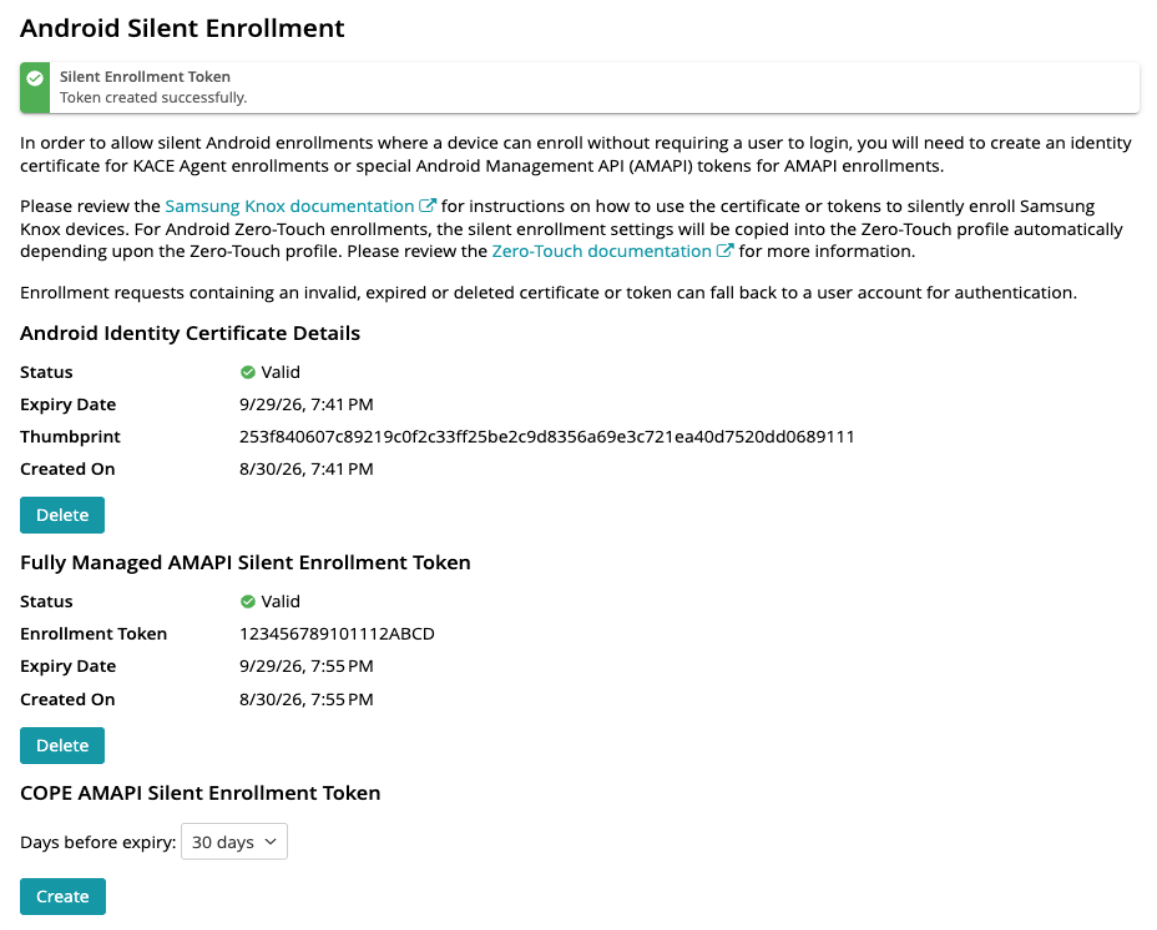
- On the Android Silent Enrollment page, go to the chosen token section, click Days before expiry, and select the length of time that you want the token to be valid.
- Click Create.
The Silent Enrollment page refreshes, displaying details about the newly created token, such as the token itself, its expiry date and the thumbprint.
At this point you also have and option to delete the token, when required, however doing so causes the silent authentication to fail.
- Samsung Knox devices only.
- In the left-hand panel, choose Android Settings > Samsung Knox Enrollment.
- On the Samsung Knox Enrollment page, under Fully managed settings > step 2, copy the text for MDM Configuration. For COPE enrollments, see the COPE settings section
- In the Samsung Knox portal, in the MDM Configuration section, paste the text you just copied into the DPC extras section.
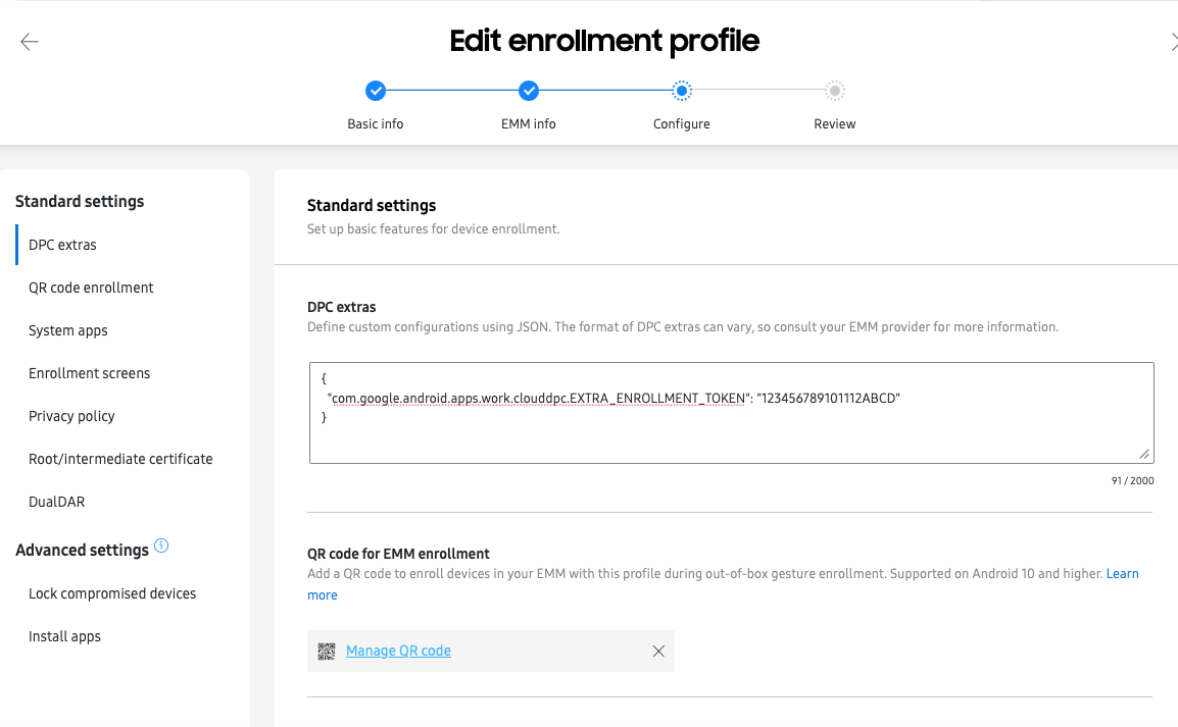
- Save your changes. Note that if the identity certificate expires and is then recreated, any Samsung Knox profiles will need updated with the new certificate.
For more details about configuring device enrollment in the Samsung Knox Portal, see Configuring Samsung Knox device enrollment.
- Android Zero-Touch devices only.
- Create or edit an Android Zero-Touch profile.
- Select the Silent Authentication check box. Note that if the token expires and is then recreated, any Zero-Touch profiles will need to be saved again to use the new certificate.
For details on creating or editing Android Zero-Touch profiles, see Add new Android Zero-Touch profile.
- If silent authentication fails on a device:
- Re-set the device and try again, or
- Log in to the KACE Cloud enrollment portal, and enroll the device.
Next steps
- Optional. Integrate with automated enrollment providers:
- Enroll your Android devices.