Android EMM: Link your Google Play organization with KACE Cloud
Linking your Managed Google Play Organization with KACE Cloud is a prerequisite for enabling Android EMM enrollment and Android app management.
To link your Managed Google Play Organization with KACE Cloud:
- In KACE® Cloud, go to Settings > Android Settings > Managed Google Enterprise.
- Click Enroll.
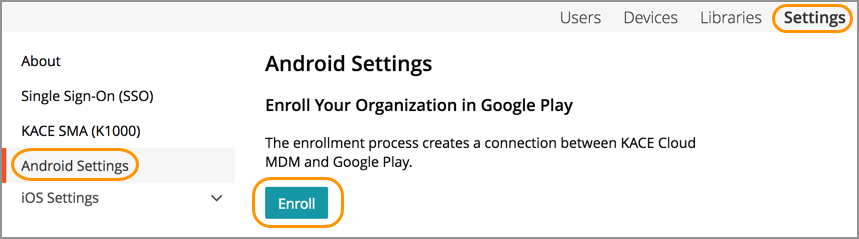
The sign-up process on Google Play will differ based on whether or not you’ve previously created an organization and what type of account you are using. A Google Workspace account will create a Google Managed enterprise.
Once the sign-up process is complete, your Managed Google Play Organization Details will be connected and accessible in KACE Cloud.
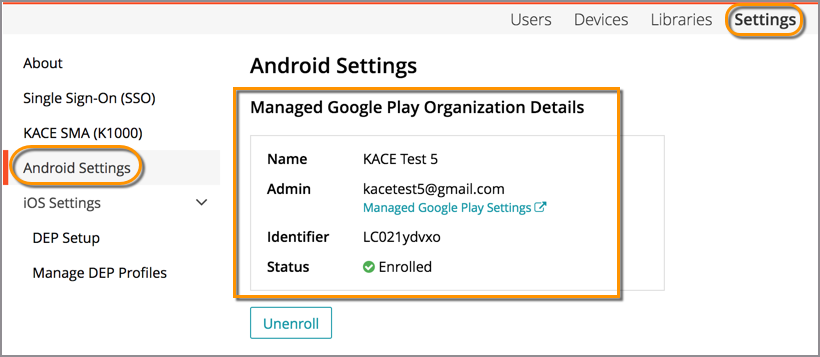
Google Enterprise details
The following pieces of information are available for the created enterprise.
| Field | Description |
|---|---|
| Name | The name of the linked Google enterprise. |
| Admin | The administrator account for the enterprise. Use the Managed Google Play Settings link to open the Google admin console. |
| Identifier | The Google-assigned enterprise ID. |
| Google Managed | Yes if the enterprise is a Google managed enterprise; otherwise No. |
| Status | Enrolled, Unenrolled, Enrolling, or Unknown. |
| Devices | The number of Android devices currently enrolled against the enterprise. |
| Apps | The number of Android apps in the app library. |
Upgrading to a Google Managed enterprise
Google recommends using a Google managed enterprise. See the Google managed enterprise documentation for more information.
If the enterprise is not Google managed, two buttons are available:
- Upgrade Enterprise — redirects you to Google to convert the existing enterprise into a Google managed enterprise.
- Refresh — retrieves the current enterprise information from Google. Use this if you upgraded the enterprise outside of KACE Cloud and the details in KACE Cloud are out of date.
Managed Google Account authentication
Managed Google Account authentication options are only available for Google managed enterprises. There are two options.
- Select Enable Managed Google Account authentication to have the KACE Android agent give the device user an option of logging in with a Managed Google account at enrollment.
- Optionally select Require users to sign in with a Managed Google Account which will force the device user to sign in with a Managed Google account at enrollment. Device users must also sign in to the KACE Cloud enrollment portal with the same Managed Google Account they use on their device, and that account must belong to the domain linked to the Google managed enterprise. Note that there is a Kiosk enrollment procedure that can bypass any Managed Google requirements in the Android enrollment options in the device view.
For details on importing apps, see Getting started to manage Android, iOS, and macOS apps.
|
|
NOTE: Automatic Google Play updates may cause an automatic reboot of a newly enrolled device after the device user logs in. |

Next steps
- Optional. Configure silent authentication.
- Optional. Integrate with automated enrollment providers:
- Enroll your Android devices.